Cloud based synchronizer setup
Setting up the synchronizer for practices with cloud based health record systems.
Cloud systems installation
For each practice with a cloud-based practice management system, you’ll need to provision a user account for the system and install a Chrome Extension on ALL practice workstations that access the system. Please note that you may need to reset the password for the new user you created for cloud-based systems upon first login.
The Developer Portal will provide you with a unique token that the practice should use to authenticate to the Chrome Extension. If you need help using the Developer Portal to obtain a token, please contact [email protected]. Note that you do not need a product key for cloud-based installations.
Here are the general steps for creating a cloud-based sync. See below for EHR-specific instructions.
- After creating the Institution in the Portal and creating the sync, submit the practice’s unique EHR URL with the admin credentials for the new user you created for the health record system.
- A NexHealth engineer will install the Synchronizer using the provided credentials. Please allow up to 72 business hours for completion. Installations for multiple locations may take longer. Please ensure that the credentials have been tested and validated for successful login before submission.
- If there is an error with the credentials, NexHealth will push a notification to the Developer Portal.
- Once the Synchronizer is up and running, the Institution and sync are moved to the "Active" state in the Portal.
- Inform the practice or their IT provider that the NexHealth Chrome Extension must be installed on every computer that accesses the health record system. The extension token for the sync is available directly in the Portal. Each sync has its own unique token, so this token should be specific to the corresponding sync.
Athena
- Create an Athena username and password **for a dedicated user account that will only be used by NexHealth
- Allow the user account access to all Roles (click on the "Roles" tab that appears on your new user > 'edit roles' and choose the 'Select All' button). As an alternative, the user needs all schedule admin, department, provider, and patient chart-related roles at a minimum.
- Install Chrome Extension v6 for Athena on each practice workstation that accesses the health record system.
- Use the token you received from the NexHealth Developer Portal to authenticate the Chrome Extension on each workstation.
Cloud9
-
Create a Cloud9 username and password for a dedicated user account that will only be used by NexHealth
-
Allow the user account access to all Roles (click on the "Roles" tab that appears on your new user > 'edit roles' and choose the 'Select All' button). As an alternative, the user needs all schedule admin, department, provider, and patient chart-related roles at a minimum.
-
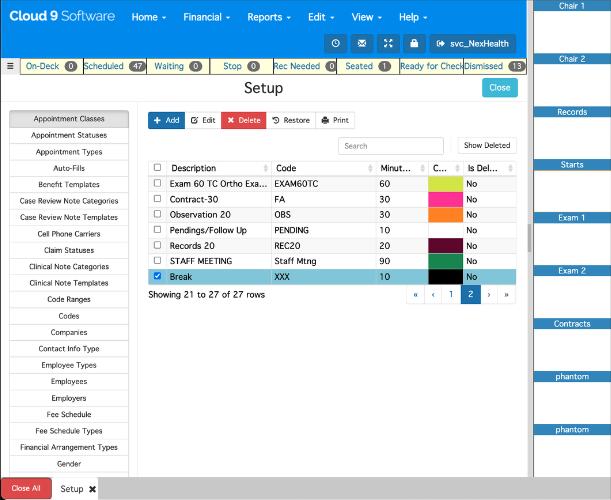
If using online booking, make note of all "Appointment classes" which should be considered as unavailable for scheduling. For example, in the screenshot below, the "break" appointment class should be considered as unavailable time. This will need to be communicated to NexHealth developer support when you submit your installation request.
-
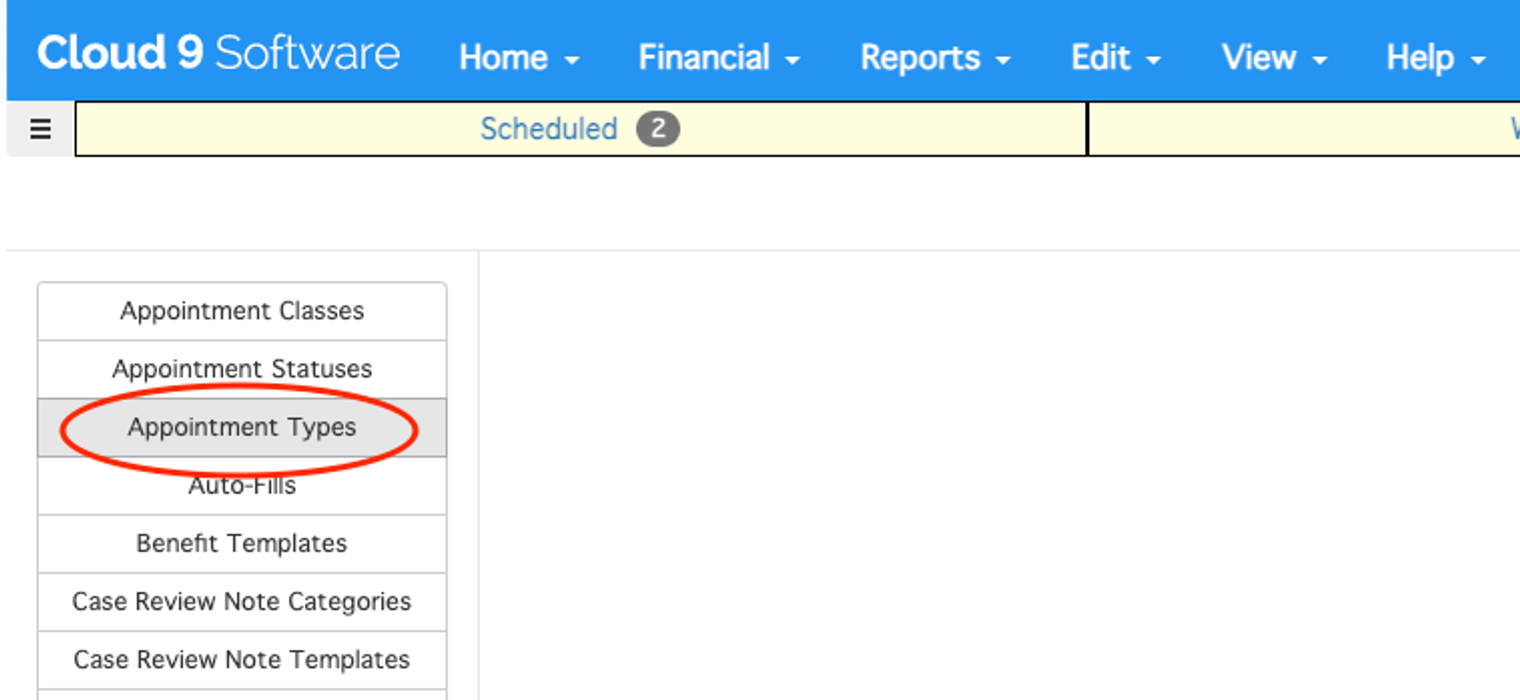
Please note that if using online booking, all Cloud9 appointments must be assigned a Cloud9 appointment type. All appointment insertion attempts without a Cloud9 appointment type will fail. For this purpose, please make note of the default appointment type that the integration will use in the event that you do not specify the appt type via appointment descriptors.
-
Install Chrome Extension v7 for Cloud9 on each practice workstation that accesses the practice management system. Detailed instructions below.
-
Use the token you received from the NexHealth Developer Portal to authenticate the Chrome Extension on each workstation.**
Curve Dental
- Retrieve the unique URL for the Curve Dental account, e.g: https://practicenamehere.curvehero.com
- Create a Curve Dental username and password for a dedicated user account that will only be used by NexHealth
- Set the user account “Role” = “Office Manager”
- Install Chrome Extension v2 for Curve Dental on each practice workstation that accesses the practice management system. Detailed instructions below.
- Use the token you received from the NexHealth Developer Portal to authenticate the Chrome Extension on each workstation.**
Dentrix Ascend
- Retrieve the unique URL for the Dentrix Ascend account, e.g: https://live.dentrixascend.com/login
- Retrieve the Dentrix Ascend organization alias (ORG ID)
- Create a Dentrix Ascend username and password for a dedicated user account that will only be used by NexHealth
- Set the user account “Role” = “Receptionist”
- Install Chrome Extension v3 for Dentrix Ascend on each practice workstation that accesses the practice management system. Detailed instructions below.
- Use the token you received from the NexHealth Developer Portal to authenticate **the Chrome Extension on each workstation.
.
Denticon
- Create a Denticon username and password for a dedicated user account that will only be used by NexHealth. This username should not contain "NexHealth".
- Set the user account “Group” = “Office Manager”
3.This user also needs to be able to log in during all hours of the day. This is a user setting and can be found under the following menu: Setup -> Security -> Users -> Login Info - Install Chrome Extension v1 for Denticon on each practice workstation that accesses the practice management system. Detailed instructions below.
- Use the token you received from the NexHealth Developer Portal to authenticate the Chrome Extension on each workstation.
eClinicalWorks
- Retrieve the unique URL for the eClinicalWorks account, e.g: https://yourpracticenamehere.eclinicalweb.com
- Note: If the eClinicalWorks web URL is not available or cannot be found, reach out to [email protected] for help troubleshooting.
- Create an eClinicalWorks username and password for a dedicated user account that will only be used by NexHealth
- Set the user account “User type” = “Staff”
- Provide the user account with access to the following areas:
- Menu ⇒ Patient ⇒ Lookup to search and select patients to view their details in Patient Hub
- These items can be found in Menu > Security Settings > By Security Attribute
- Create New Patient
- Delete Appointment
- Navigate to Menu > File > Authentication Settings and ensure “Enforce eCW URL Launcher for Login” = false
- Install Chrome Extension v4 for eClinicalWorks on each practice workstation that accesses the practice management system. Detailed instructions below.
- Use the token you received from the NexHealth Developer Portal to authenticate the Chrome Extension on each workstation.
Modernizing Medicine (ModMed)
We'll need the following to complete our ModMed integration:
- The unique URL that they use to log in with.
- Which locations within their account are we integrating with? (This should be submitted with the install request)
- We need 2 ModMed user accounts that we refer to as the Clinical user account and Management user account
- The Clinical user account needs access to the following headers:
- Schedule
- Appt Flow
- Patients
- Document Management
- The Management user, requires a administrator role and requires access to the following headers:
- Practice Settings
- Including the sub-section called Event Logs with access to Audit Event Logs
- Clipboard / Kiosk / Portal Settings
- Practice Management Settings
- Practice Settings
- The Clinical user account needs access to the following headers:
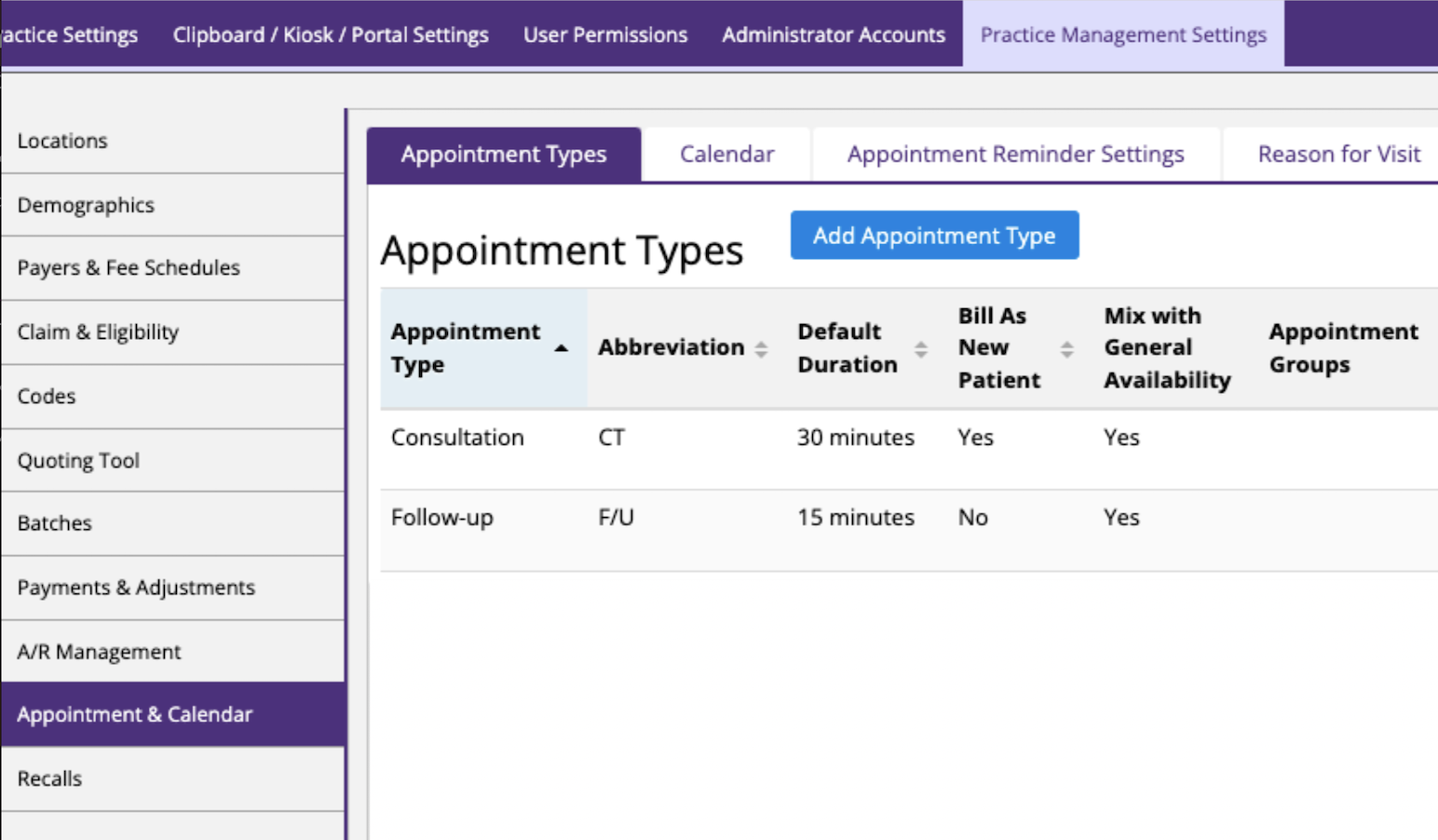
Please note that if using online booking, all ModMed appointments must be assigned a ModMed appointment type. All appointment insertion attempts without a ModMed appointment type will fail. For this purpose, please make note of the default appointment type that the integration will use in the event that you do not specify the appt type via appointment descriptors.
A list of available appointment types may be found in the "Practice Management Settings" tab under "Appointment & Calendar" menu on the left hand navigation as shown in the screenshot below.
NextGen
We require the following information to complete our integration with NextGen. A Chrome Extension is not required for this integration.
- A new dedicated practice admin user.
- Important: The email the user is registered to must be done with an email provided by NexHealth. Please email [email protected] for more information
- Names of locations you require NexHealth to sync with.
Chrome Extension installation
For most cloud-based practice management systems, you will need to install a version of the NexHealth Synchronizer Chrome Extension. Please note that the Chrome extension must be installed on all workstations where staff members make changes to the schedule including creating new patients/appointments and editing existing patients/appointments.
Mass deployment to a large number of workstations is available if the client uses a remote management software (RMS) that can deploy a .exe file on all their machines or a Group Policy Object (GPO). Instructions will vary depending on the integration and institution. Please reach out to [email protected] for next steps.
For manual installation, please use the following steps:
- Click on the Chrome Extension link for the correct practice management system, then click Add to Chrome (and Confirm on the next screen).
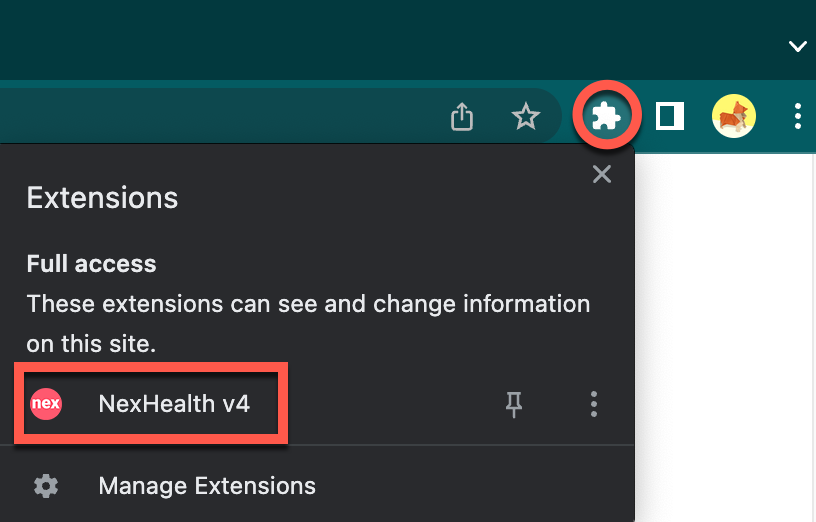
- Once you have added the extension, activate it by clicking into your available extensions on the top right corner of your Chrome browser and selecting NexHealth:
-
You should have received a unique token for each practice from NexHealth. If you need help obtaining a token, please contact [email protected].
-
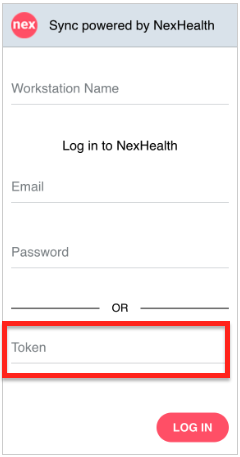
Enter the customer’s token at the bottom of the login screen:
-
Be sure to perform the installation on all practice workstations.
FAQs
Cloud-based systems
Can I use any existing user for the NexHealth sync?
To prevent delays, offices should provide a dedicated user (meaning the username is not used by any person or automated process). The NexHealth team reserves the right to update the provided password to ensure better security. Therefore, if a person or process continues to log in with the old password, the website will automatically inactivate the user. If these two criteria are not met, we may not be able to move forward with the integration.
Why do I need to install the Chrome Extension?
The Chrome Extension provides a true real-time sync which will pick up new patients, appointments, cancellations, reschedules, etc. instantly.
Where do I need to install the Chrome Extension?
To ensure that the Synchronizer picks up all changes to the practice management system in real-time, the Chrome Extension needs to be installed on ALL workstations where anyone makes changes to the system (ex: new patients, new appointments, rescheduling appointments).
Updated 4 months ago