
Institutions, syncs, and locations
How NexHealth models a practice: institutions, syncs and locations.
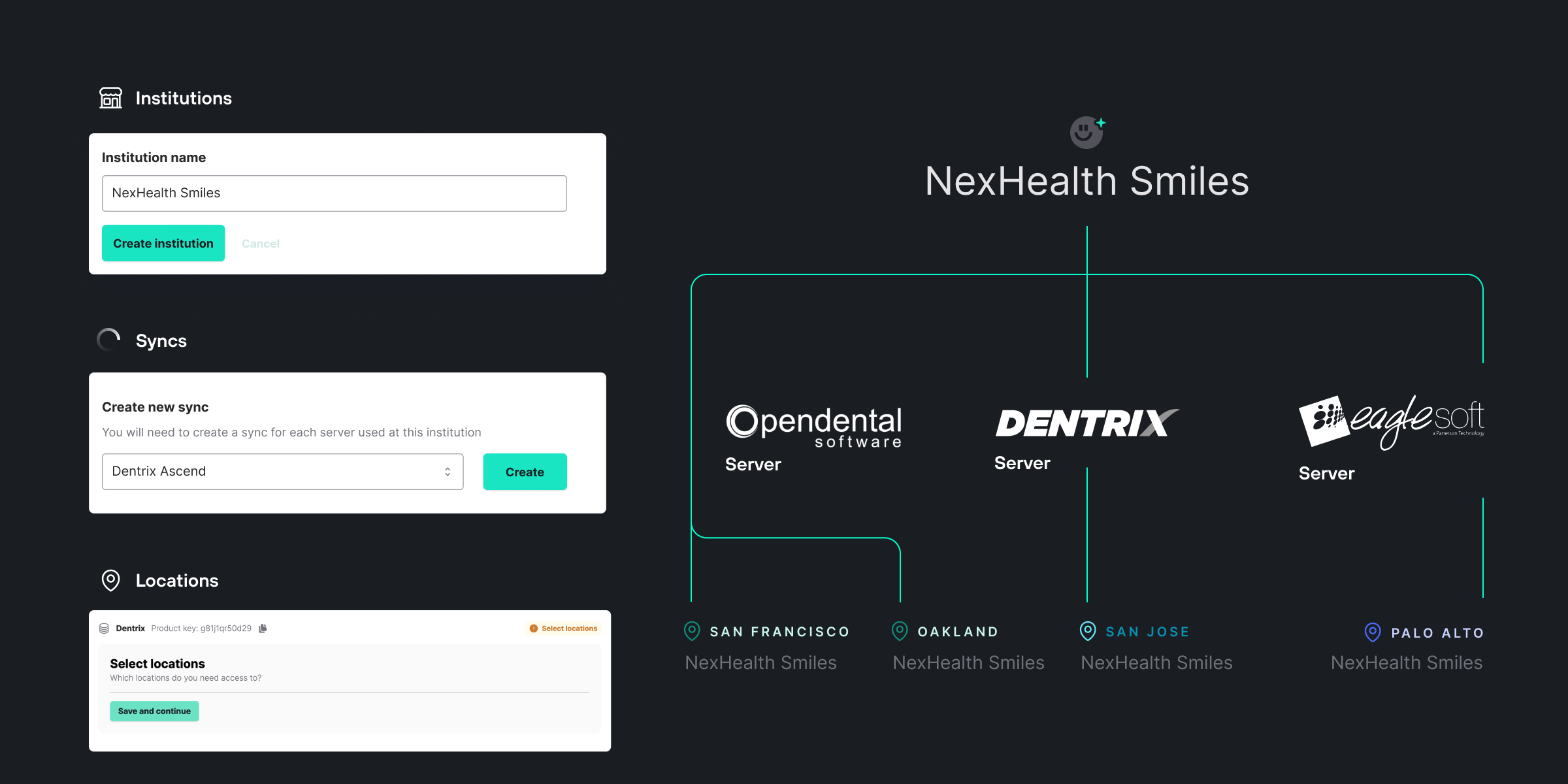
An institution is a group of practices that belong to the same parent organization. An institution has syncs. Each sync maps to one instance of a health record system, for example a server running Dentrix. A sync has one or more locations.
Institutions
An institution groups practices and their syncs. It is the top level of the hierarchy. Think of it as a parent organization.
In the Synchronizer API, a subdomain identifies an institution. Almost every endpoint needs the subdomain parameter, for example ?subdomain=example-subdomain. You can query one subdomain at a time. If your API key does not have access to the institution, you get a 403 Forbidden response.
Syncs
After you create an institution, the next step in onboarding a practice is to create a sync. A sync is one instance of the NexHealth Synchronizer. It lets NexHealth exchange data between the health record system and your app.
You need one sync for each database. A database can hold records for one office or for several, so a sync can connect to one location or to several. For example, sync A is installed on a Dentrix server that hosts a database for one location. Sync A connects to one location. Sync B is installed on a Dentrix Enterprise server that hosts a database for several locations. Sync B connects to several locations.
Server-based syncs
A server-based database usually runs on a machine in an office, or on a virtual machine hosted by a web service such as AWS. In both cases, the NexHealth Synchronizer must be installed on each server you need access to.
An institution with several offices can share one server (a multi-location or multi-clinic database), have one server for each location, or mix both. Work with the office or their IT to understand the network setup. It decides how many syncs, and so how many installs, you need.
Cloud-based syncs
A cloud-based database does not rely on a physical server. Users log in from a browser with a username and password. For a cloud sync, the NexHealth Synchronizer needs a set of user credentials for installation. In most cases, a Chrome extension also keeps the sync running. It must be installed and signed in on the workstation of each office user.
Like a server-based database, a cloud-based database can hold records for one office or for several. For several offices, the office manager should set up one user with access to all the locations or facilities. The NexHealth structure of institutions and syncs must match the structure in the health record system. For example, several offices share one Dentrix Ascend org ID, so staff can switch between locations or facilities without signing out. NexHealth must then have one sync and one Ascend user with access to all those locations. All the locations are part of the same sync, so they share one Chrome extension token.
Locations
A location is the lowest level of the hierarchy. Most practice records, such as patients, appointments and charges, belong to one location. Those endpoints need both the location ID and the subdomain, for example ?subdomain=example-subdomain&location_id=100. A location ID that does not exist in the institution returns 404 Not Found.
API access is granted for each location. One API key can have access to one or many locations in a subdomain. A location ID that your API key cannot access returns 403 Forbidden.
API access is not specific to an endpoint. Access to a location gives access to every endpoint for that location.
Managing syncs
At first it can be hard to tell whether you need a new sync or another location on an existing sync. These scenarios help you decide. Start by asking the customer whether the new location shares a database with any other location.
A new customer with a single-location database
Confirm that the customer is not part of an institution you already work with, such as a practice group. Then create a new institution for the customer, create a sync and follow the onboarding process.
A new customer with a multi-location cloud setup
Offices on eClinicalWorks or Dentrix Ascend often create a user with access to more locations than you need. After you submit the cloud credentials, email [email protected] with the locations to sync. This is the fastest route. If you do not, support may ask for more information before the installation can start.
An existing customer wants to add a location
Start from the existing institution. You either create a new sync or add a location to an existing sync.
- If the new location has its own server, or uses a cloud health record system that no other office shares, create a new sync and follow the onboarding process.
- If the new office shares a server with sister locations, check whether you already have access to those sister locations.
- If you do not have an active sync for any of them, create a new sync and follow the onboarding process.
- If you have an active sync for at least one of them, do not create a new sync. Follow Onboard a location to activate more locations in the Developer Portal.
An existing customer left their practice group and wants to keep using your app
If the office now operates on its own, deactivate its existing location in the portal. Then create a new institution for it in the Developer Portal and follow the onboarding process.
A customer deleted the Synchronizer from their server by accident
The NexHealth Synchronizer has to be reinstalled on the server. Email [email protected] for a new product key.
An existing customer moved their health record system to a new server
If the customer has a new server and has not changed the health record system setup, keep the same sync and location. An example is single-location Open Dental moved to a new Windows machine. The NexHealth Synchronizer has to be installed on the new server. Until the install is complete, NexHealth has stale data. Email [email protected] for a new product key.
An existing customer moved to a different health record system
Some changes affect IDs in the database, such as location IDs, patient IDs and provider IDs. Examples are a move from Open Dental to Dentrix, or from single-location Open Dental to multi-location Open Dental. Keep the existing institution and create a new sync in the portal. When you finish the installation, the Synchronizer creates a new location. Update your API calls to use the new location ID. The underlying data should stay the same, but IDs change between locations. After the migration, the new location should have roughly the same providers, patients and appointments, with new IDs.
Store subdomains and location IDsYou send the subdomain and
location_idin most requests, and they rarely change. CallGET /locationsfrom time to time and store the response. This saves API calls.
Important location configuration flags
| Attribute | Definition |
|---|---|
| map_by_operatory | If true, requires that bookings are performed taking operatory availability into account. |
| insert_appt_client | If true, appointments created with this location go into the health record system. |
| appt_types_map_by_operatory | If true, appointment types map to operatories instead of providers |
Updated 19 days ago