
Setting up an Open Dental sandbox sync
Connect a free Open Dental demo to your sandbox to test real reads and writes.
Open Dental is a health record system with a free demo version. You can use the demo to stand in for a real production system. It lets you test the whole flow: connect the Synchronizer to a location, then read and write data there. This is as close to production testing as you can get while still using your sandbox API key.
Installing on macOSServer-based health record systems such as Open Dental run only on Windows. On a Mac, you may need a virtual machine (VM) with Windows to set up an Open Dental server. Expand the section below for help with setting up a VM.
Setting up a Windows VM for Open Dental
There are several ways to run Windows in a virtual machine. This guide uses Parallels.
- Download the installer for the trial version of Parallels.
- Run the Parallels installer and click Install Parallels Desktop.
- When that finishes, run the Parallels Desktop application.
- Go through the Parallels setup and give Parallels the permissions it asks for.
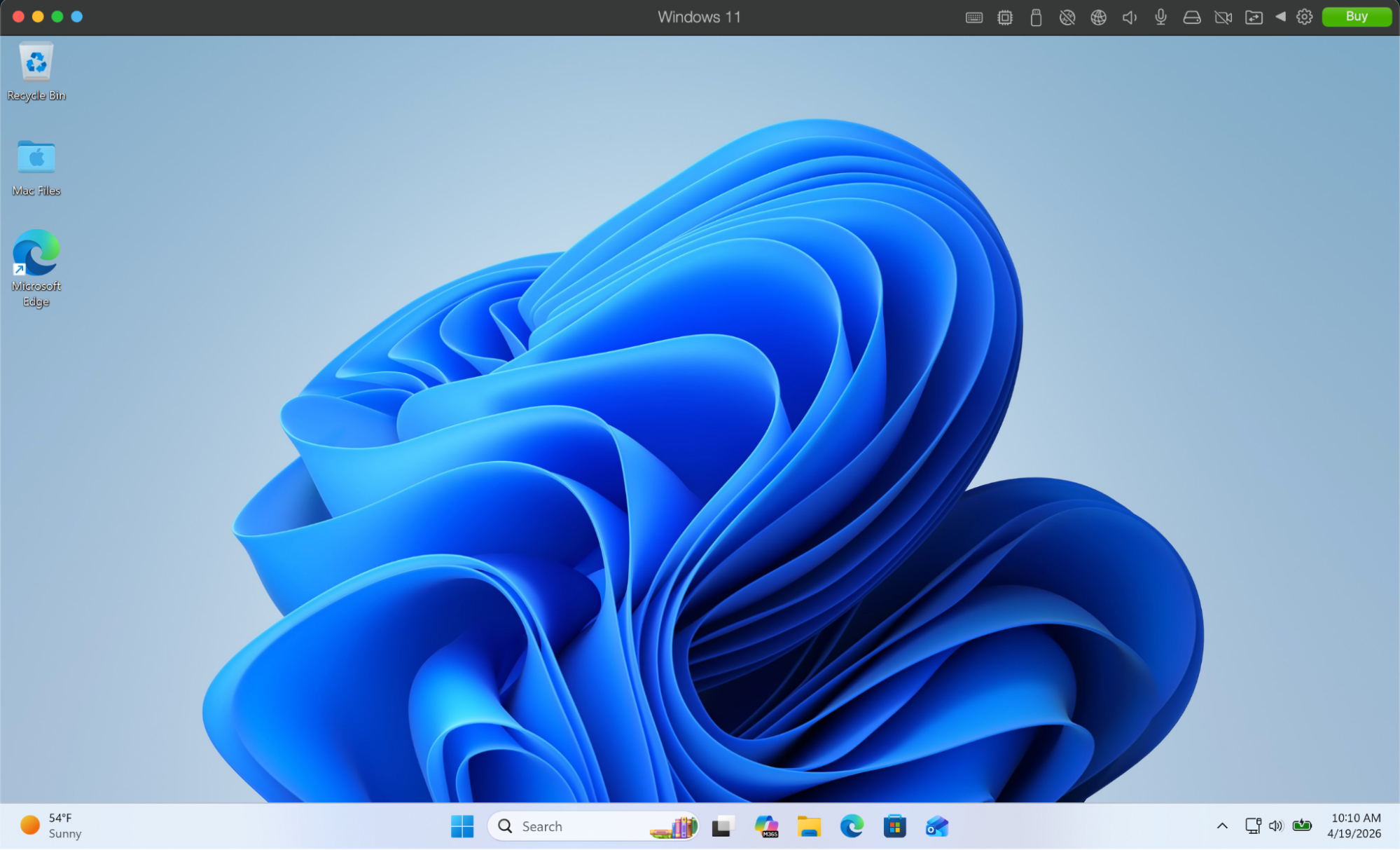
When the Parallels setup is done, you see a Windows 11 desktop.
You install Open Dental inside this Windows environment. One more step is needed first.
A virtual environment is missing a dependency that real Windows machines usually have. The Synchronizer needs it later, so install it now.
- In the Parallels Windows environment, open Microsoft Edge and go through any steps it needs before you can search the web.
- Download the latest Microsoft Visual C++ redistributable.
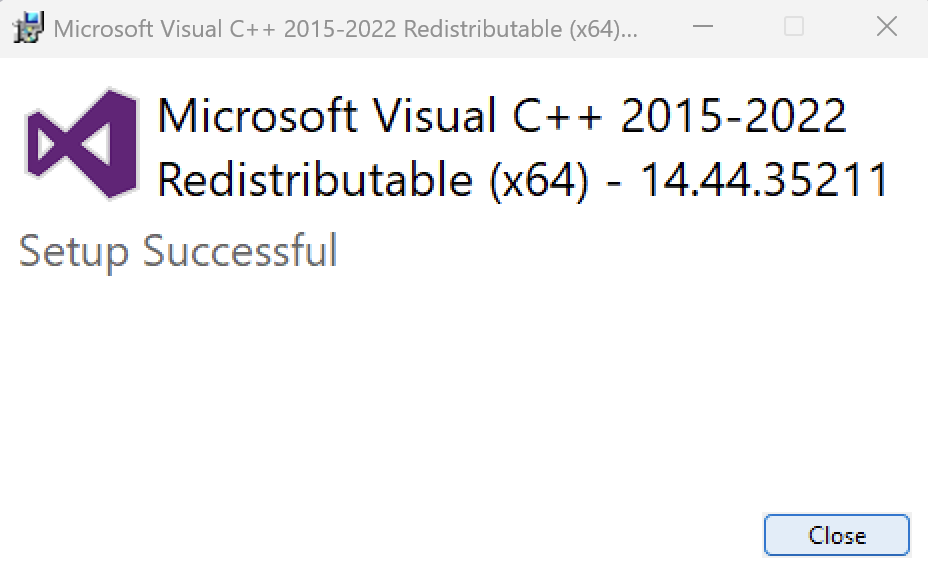
- Run the installer and go through each step. Click Close when it finishes.
The Parallels Windows environment is now ready.
Install Open Dental
In a Windows environment, follow these steps.
- In the Open Dental documentation, find the "Installation to a Server" section and download the installer from step 1.
- Run the installer.
- Give the installer the permissions it asks for.
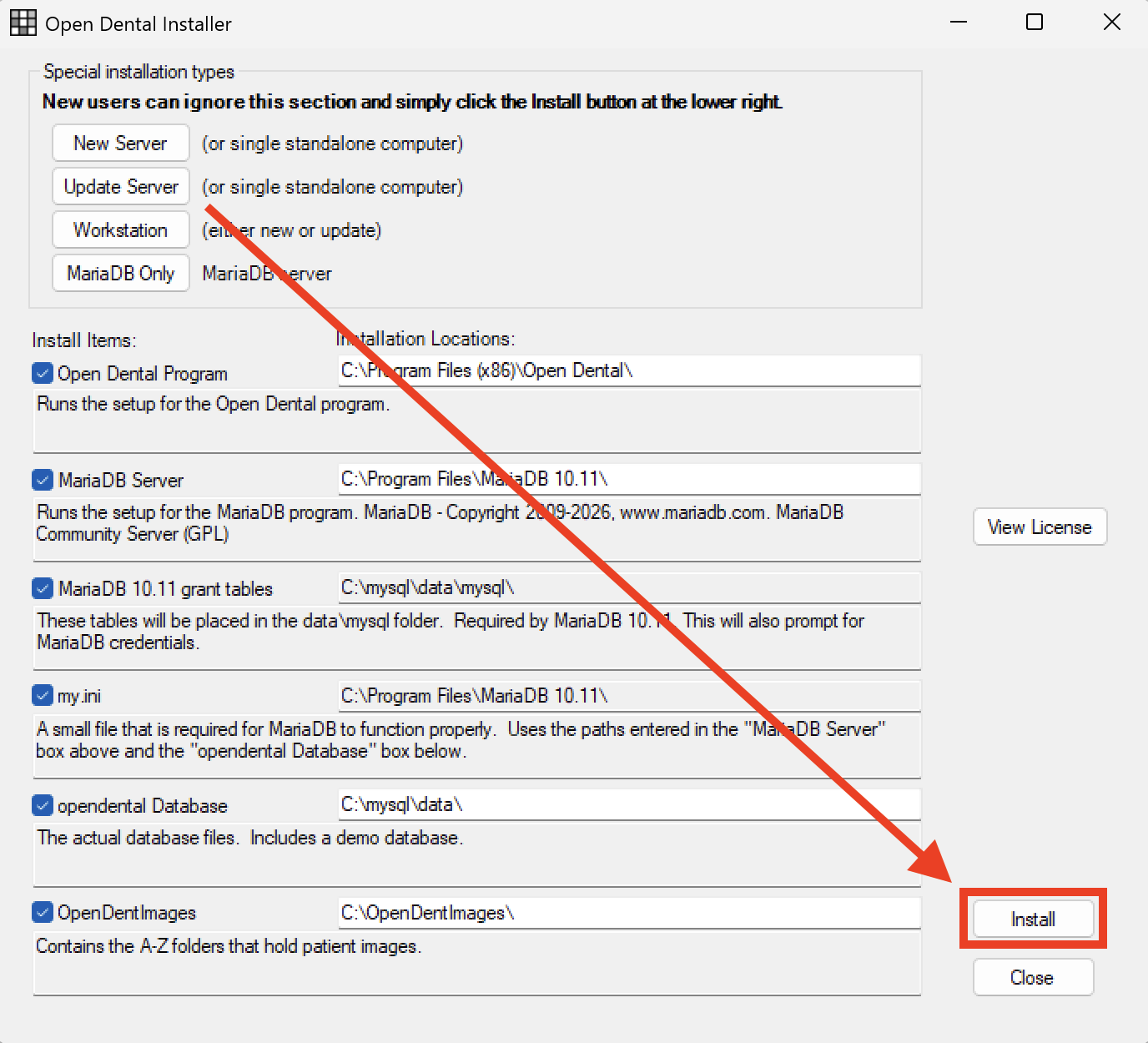
- On the page below, ignore all the configuration settings and click Install.
- In the popup, click Next through the setup wizard until you reach this page. Then click Install.
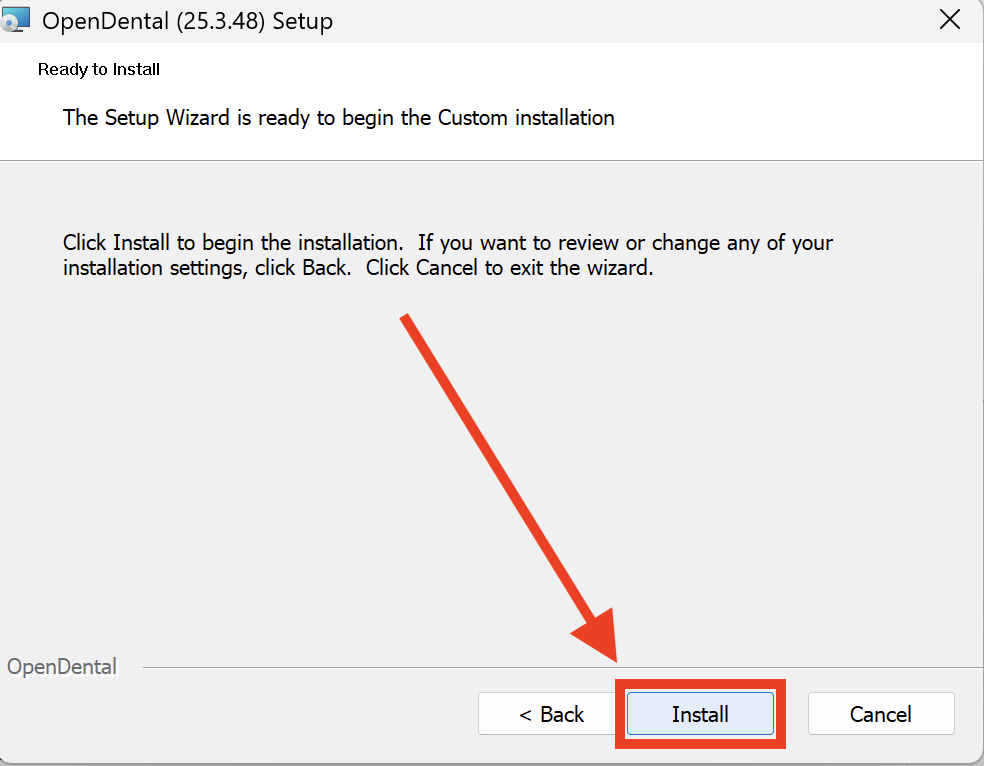
- When the installation is complete, click Finish.
- When the MySQL Credentials popup appears, enter a password of your choice and click OK. Save the password. You need it later.
- Click OK again.
- Close the original Open Dental installer window.
- Search for "Open Dental" in the Windows search bar, find the application and click Run as administrator.
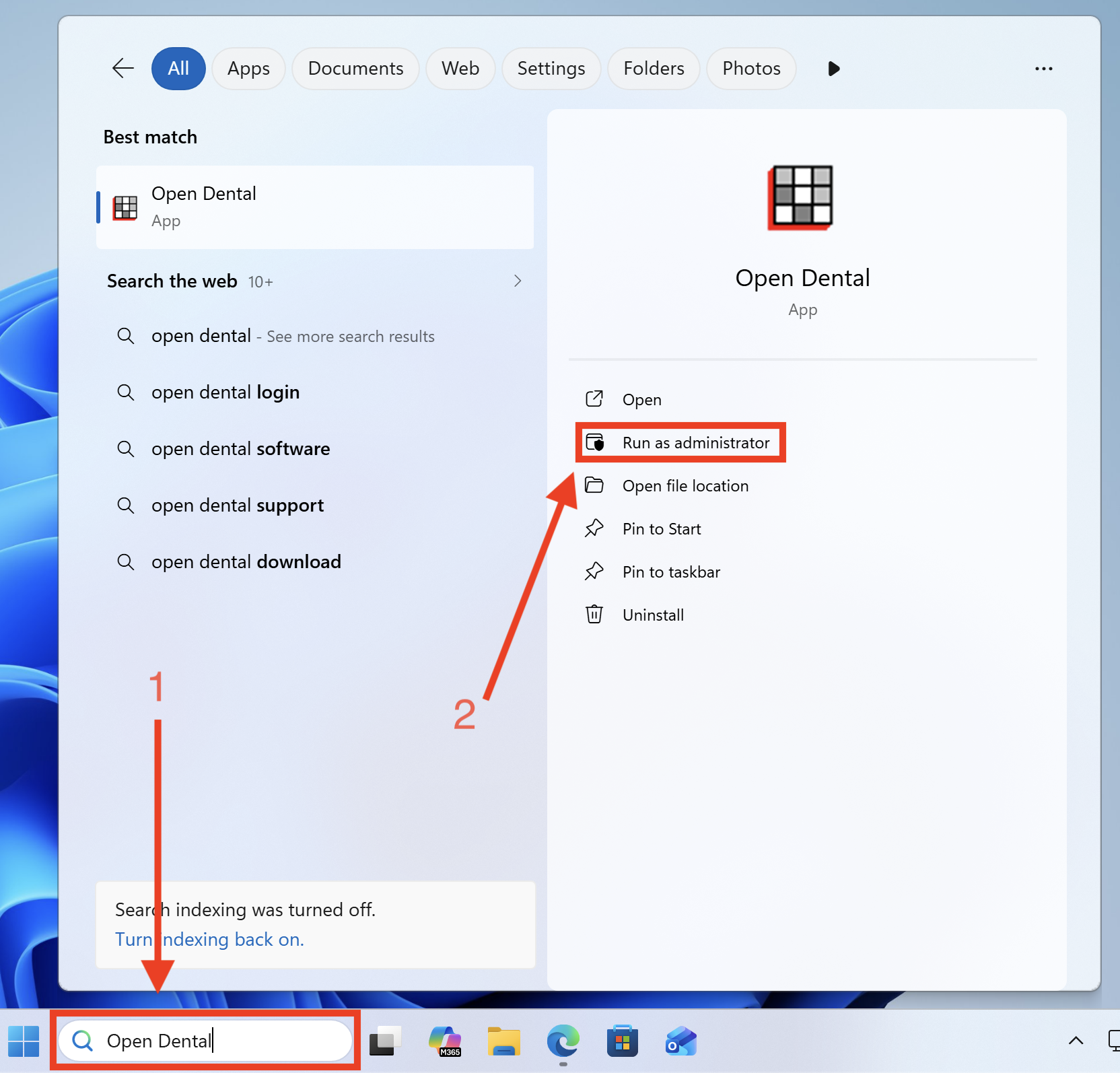
- Click through any popups until you are asked for a database password.
- Enter the database password you created earlier and click OK.
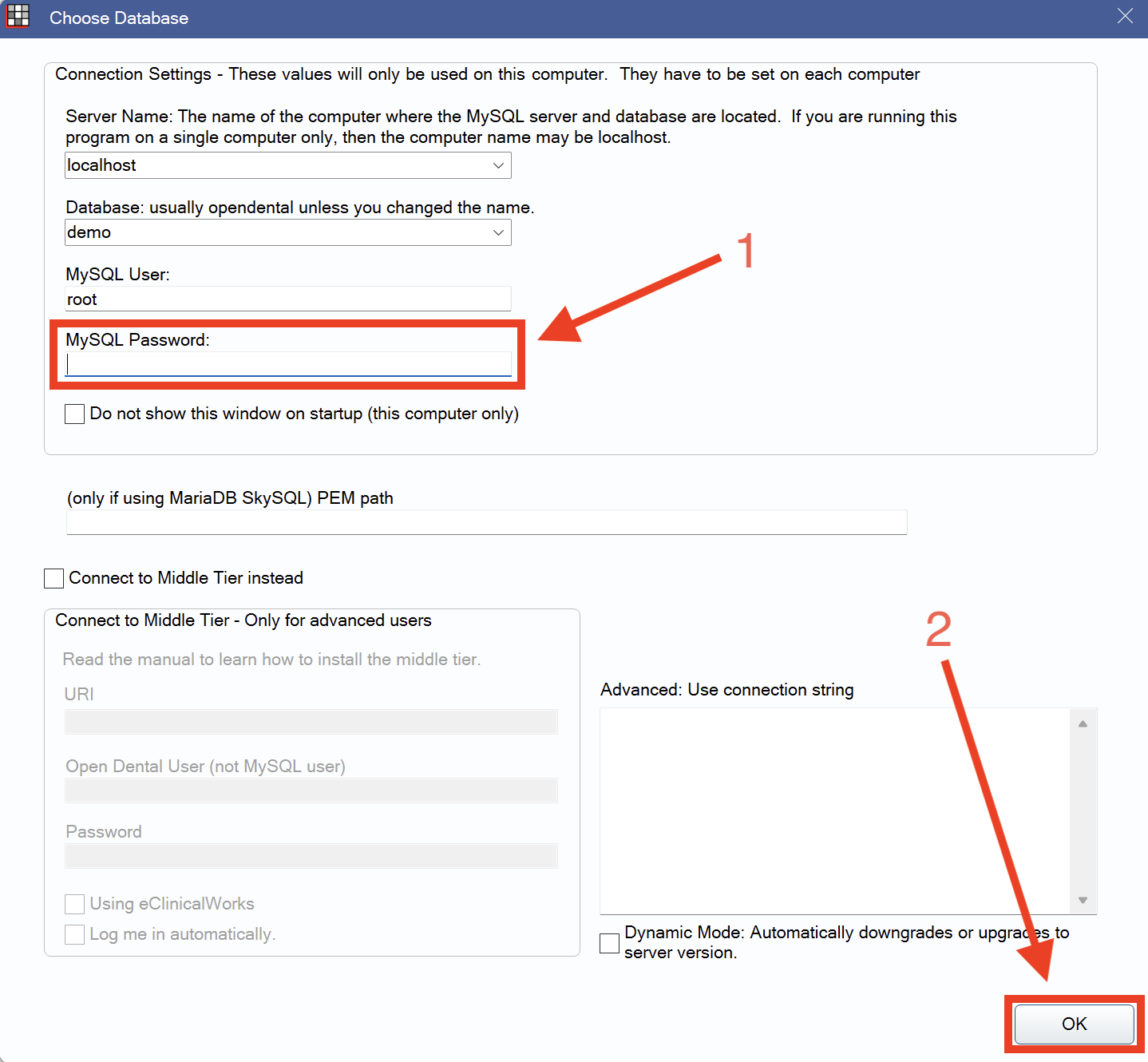
You now have a working Open Dental demo that matches what a real practice uses.
Install the NexHealth Synchronizer
Open Dental is installed. Next, set up the NexHealth Synchronizer so the API can reach it.
Create a new sync
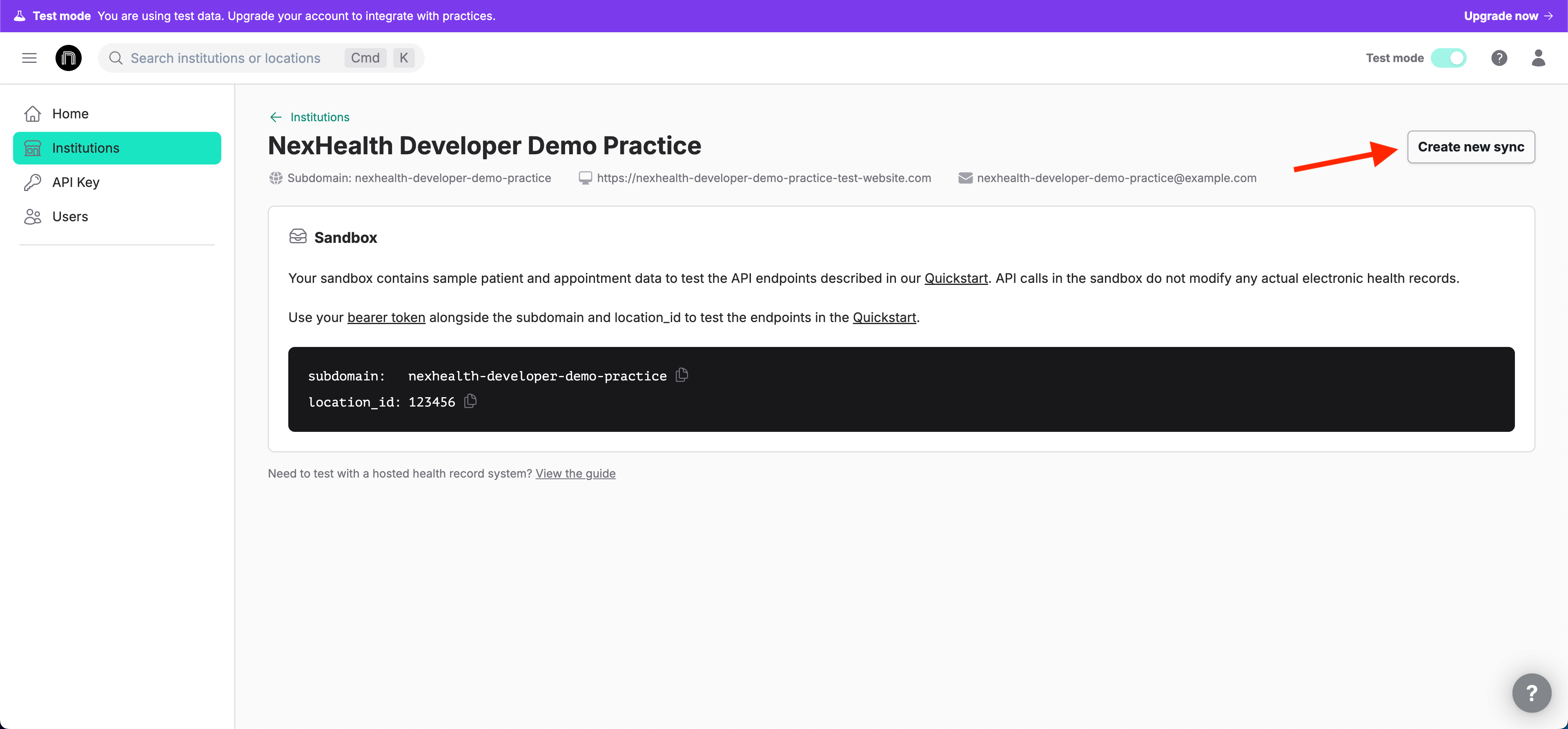
- In the Developer Portal, open your sandbox institution. Its name is the company name you chose at signup with "Demo Practice" at the end.
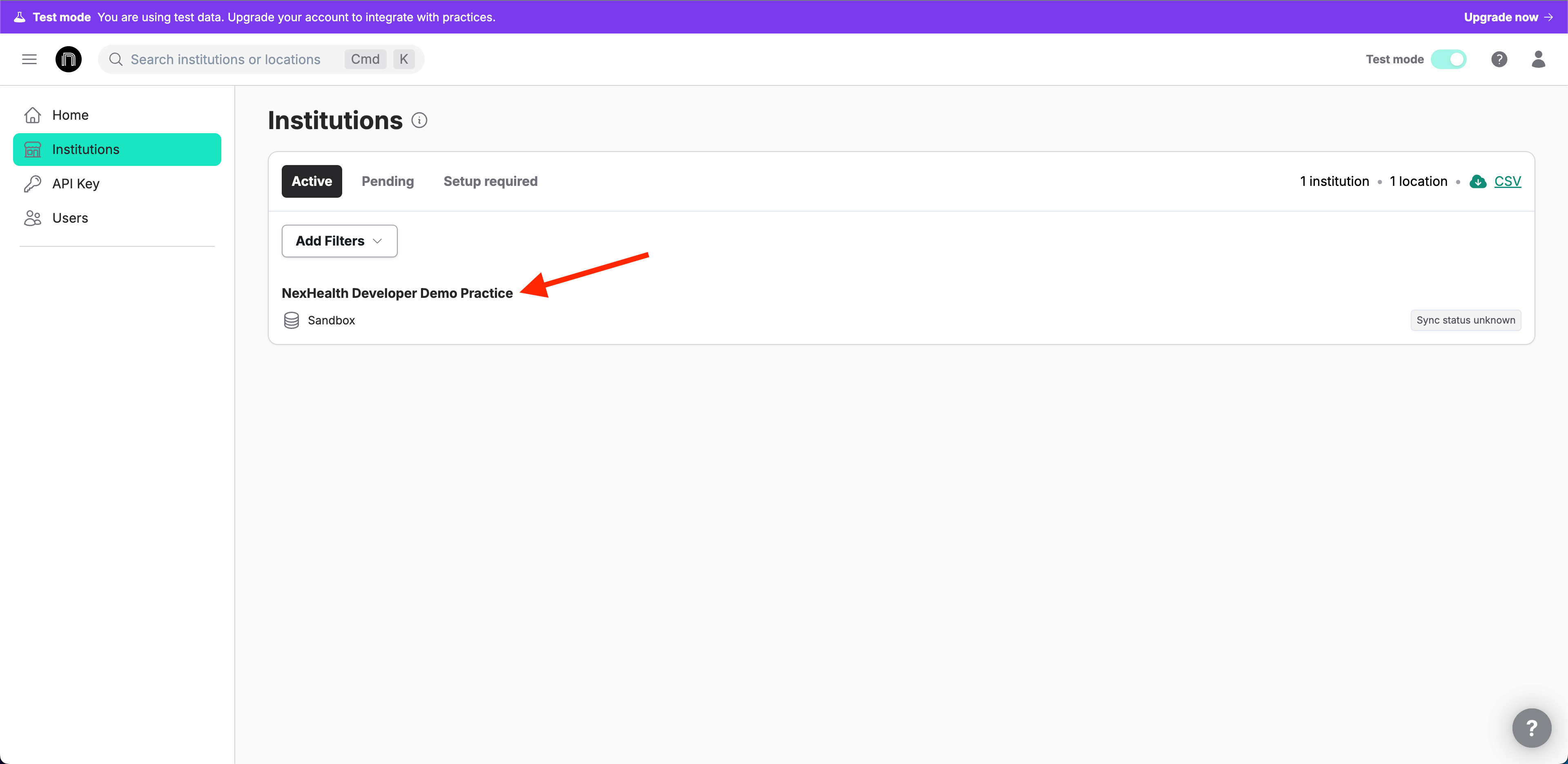
- At the top right, click Create new sync. This button sets up a connection for a practice that does not have one yet.
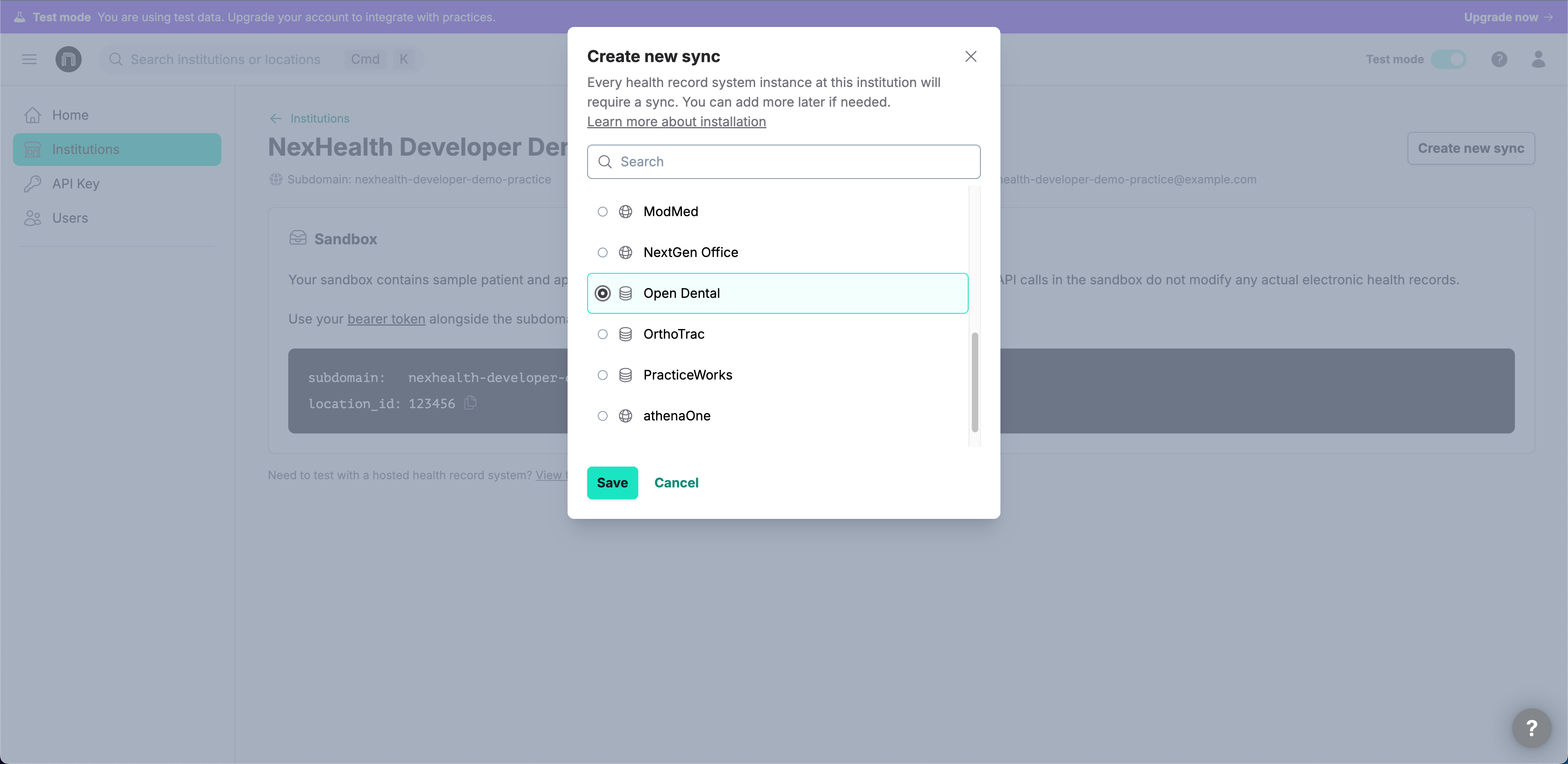
- A list of health record system integrations appears. Select Open Dental and click Save.
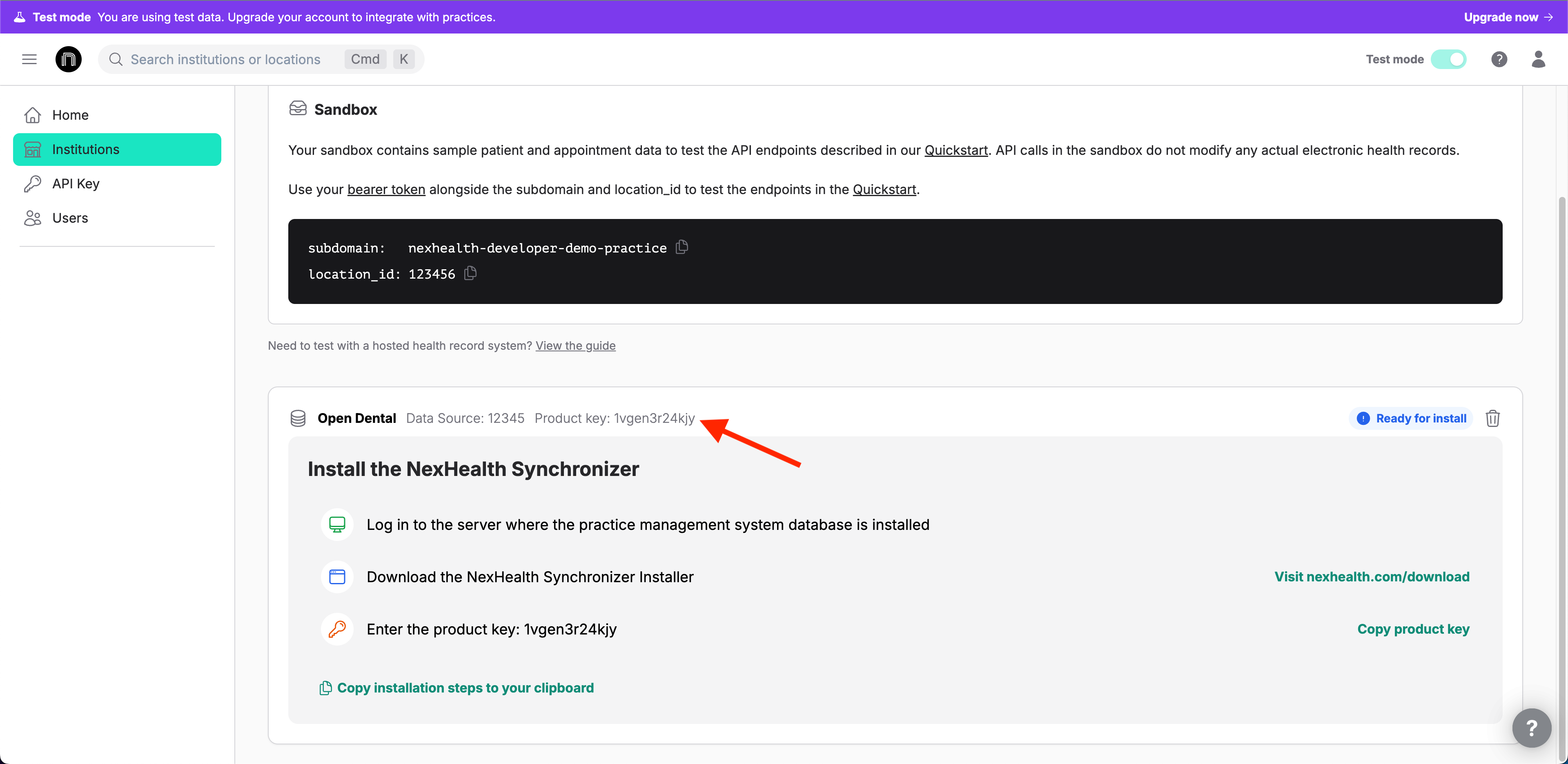
- Under your sandbox location, a new sync for Open Dental now shows, with a product key. Save the product key. You need it in a later step. To copy it, click the key or click Copy product key.
Download and run the self-installer
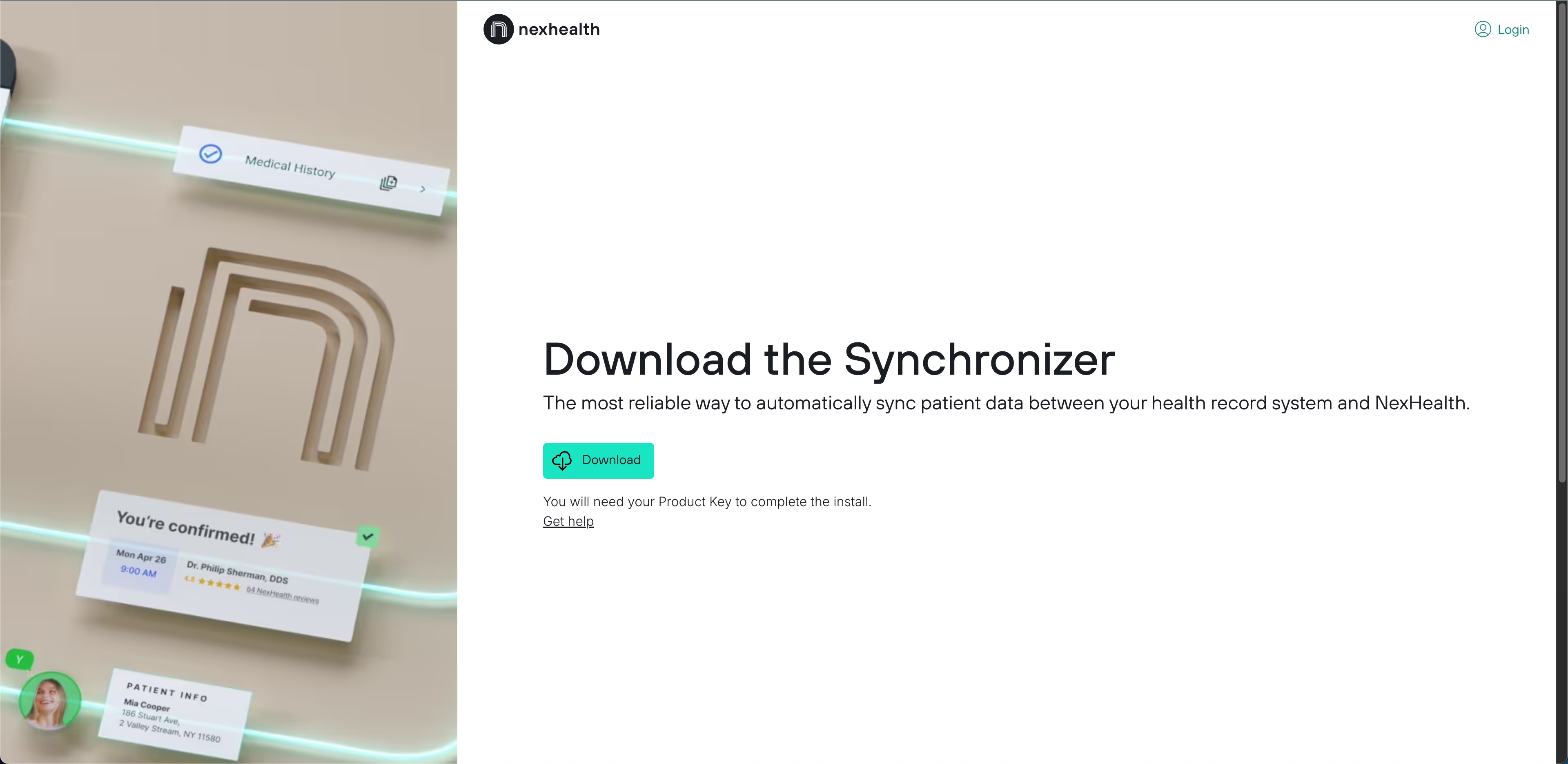
- On the machine where you installed Open Dental, go to https://www.nexhealth.com/download and click Download. This downloads the latest NexHealth Synchronizer self-installer.
- Find the downloaded
NexHealth Synchronizer.exefile and run it. We recommend running it as an administrator, so the installer has the permissions it needs. - The self-installer asks for a product key. Enter the product key from the Developer Portal and click Continue.
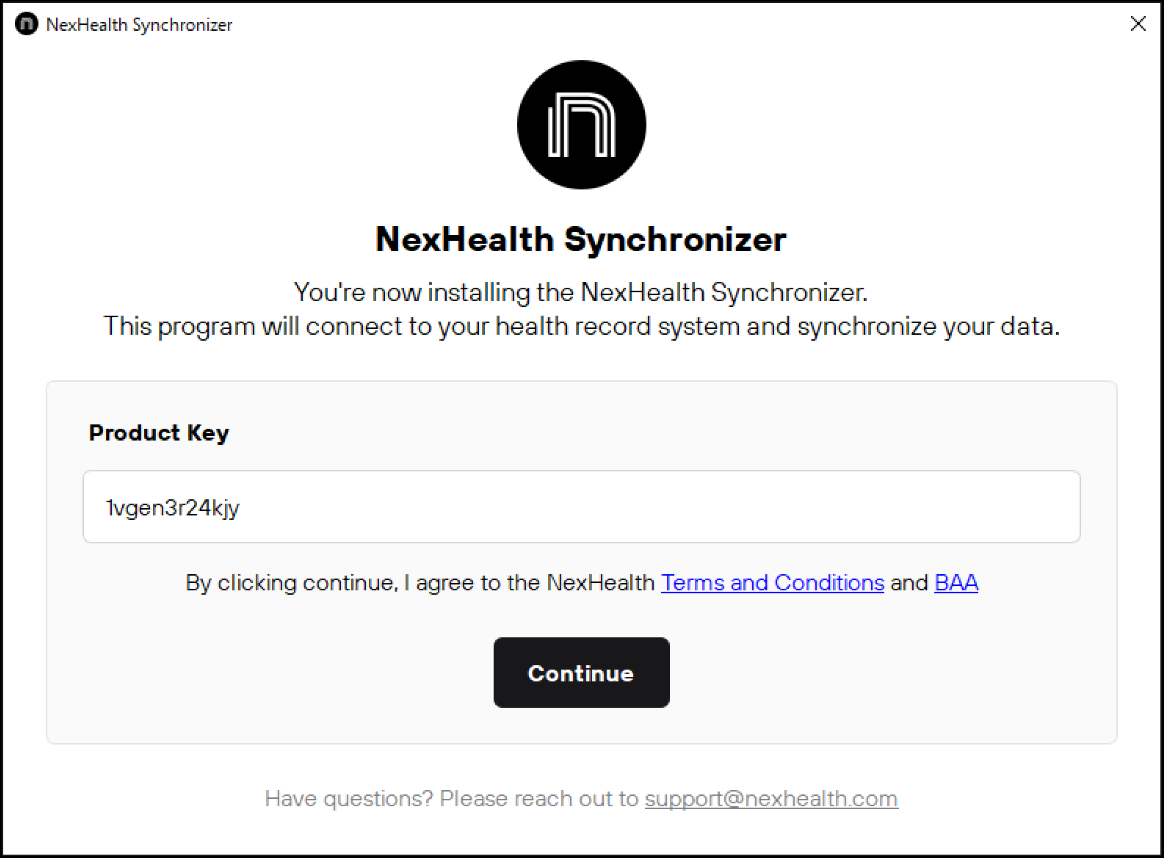
- The self-installer installs the Synchronizer on the server. This can take 10 to 30 minutes.
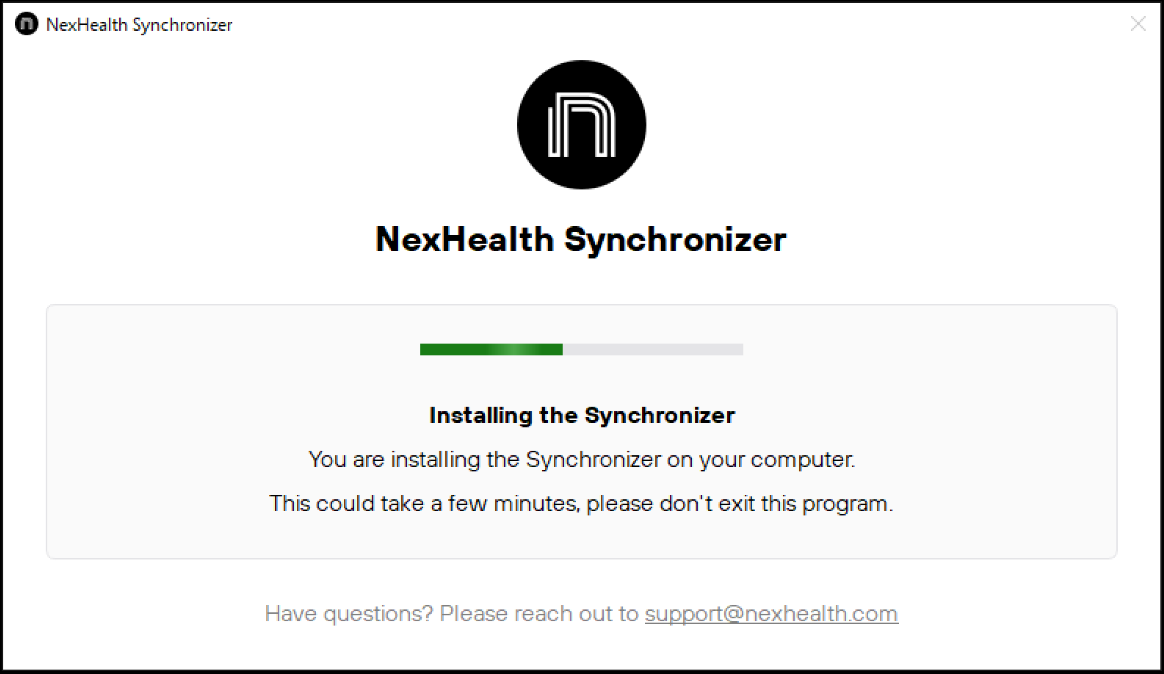
After a few minutes, the window says the Synchronizer is installed and is reading historical data. You can close the window when this message appears. We recommend waiting until a Close window button appears.
- When the installation is complete, a message says the Synchronizer is up and running and a Close window button appears. You can close the self-installer now.
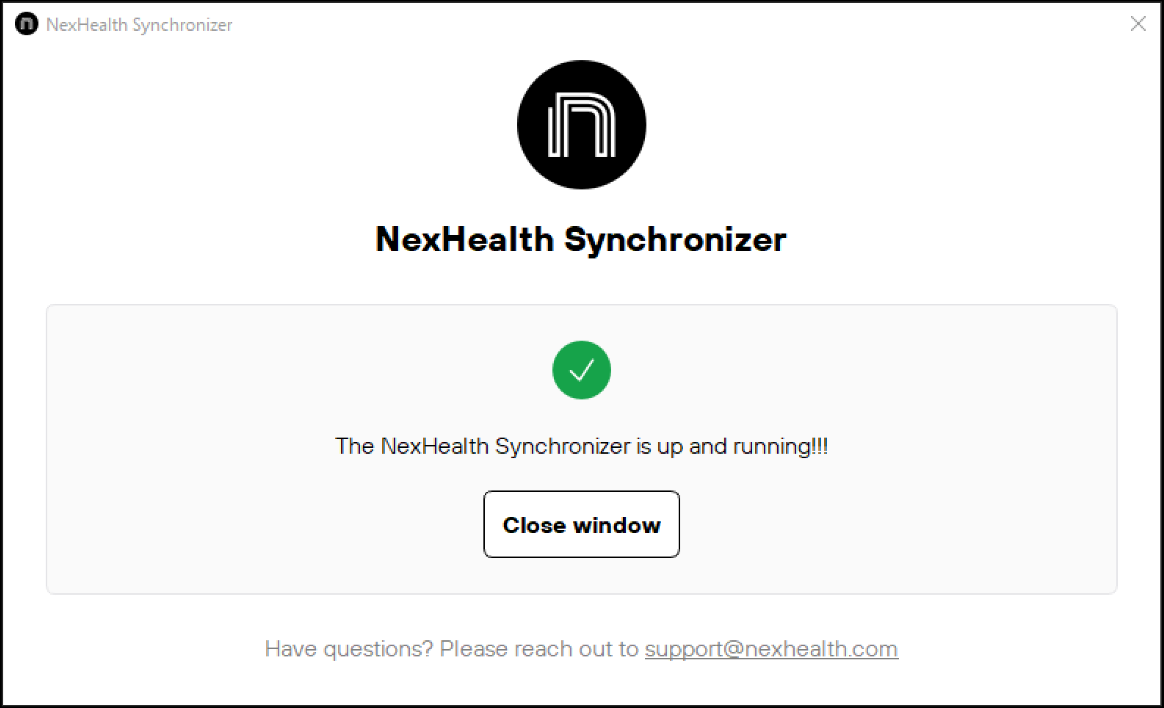
You can now reach your Open Dental system through the API. Refresh the Developer Portal. The location now has an ID and shows more information, including the status of the sync.

Updated 1 day ago