

Scheduling configuration guide
Working hours, operatories, appointment types and synced schedules, one setup at a time.
A scheduling integration with NexHealth has two parts. First you set when a provider is available. Then you get the bookable slots that come back. This guide walks through scheduling setups from the simplest to the most complex. Each step shows how to set up the schedule, what the API returns when you ask for slots, and what to watch for in the data.
The walkthrough starts with manual configuration. You create the schedule through the API, and it has the same shape for every health record system. Section 3 covers synced configuration, once you know the scheduling endpoints.
The samples use the values from the Quickstart: NEX_TOKEN, NEX_SUBDOMAIN, NEX_LOCATION_ID, NEX_PROVIDER_ID and NEX_OPERATORY_ID. Node samples need Node 18 or later, saved as .mjs files. Python samples need the requests package.
Default working hours configurationManual is the default for most integrations. Synced is opt-in for each location and is available only for supported systems.
The examples use v3.0.0 of /working_hours and /available_slots, with the Nex-Api-Version: v3.0.0 header. See the working hours and available slots reference.
1. Set a fixed weekly schedule for one provider
This guide uses an example office, Happy Smiles Dental, to show each working hours setup.
This is the simplest setup, and most practices start with it. Each later section adds a layer.
Happy Smiles Dental, configuration 1
Dr. Smith works Mondays through Thursdays, 9:00 AM to 5:00 PM, in Operatory 1. Same hours every week. No lunch break in the schedule. No exceptions.
Configure
One POST. The provider's full week goes in the days array.
cat > working-hours.json <<EOF
{
  "working_hour": {
    "active": true,
    "provider_id": $NEX_PROVIDER_ID,
    "operatory_id": $NEX_OPERATORY_ID,
    "begin_time": "09:00",
    "end_time": "17:00",
    "days": ["Monday", "Tuesday", "Wednesday", "Thursday"]
  }
}
EOF

curl -s --request POST \
  --url "https://nexhealth.info/working_hours?subdomain=$NEX_SUBDOMAIN&location_id=$NEX_LOCATION_ID" \
  --header "Nex-Api-Version: v3.0.0" \
  --header "Authorization: Bearer $NEX_TOKEN" \
  --header "Content-Type: application/json" \
  --data @working-hours.json
const { NEX_TOKEN, NEX_SUBDOMAIN, NEX_LOCATION_ID, NEX_PROVIDER_ID, NEX_OPERATORY_ID } = process.env;
const url = `https://nexhealth.info/working_hours?subdomain=${NEX_SUBDOMAIN}&location_id=${NEX_LOCATION_ID}`;
const res = await fetch(url, {
method: "POST",
headers: {
"Nex-Api-Version": "v3.0.0",
Authorization: `Bearer ${NEX_TOKEN}`,
"Content-Type": "application/json",
},
body: JSON.stringify({
working_hour: {
active: true,
provider_id: Number(NEX_PROVIDER_ID),
operatory_id: Number(NEX_OPERATORY_ID),
begin_time: "09:00",
end_time: "17:00",
days: ["Monday", "Tuesday", "Wednesday", "Thursday"],
},
}),
});
console.log(await res.json());import os
import requests
res = requests.post(
"https://nexhealth.info/working_hours",
params={
"subdomain": os.environ["NEX_SUBDOMAIN"],
"location_id": os.environ["NEX_LOCATION_ID"],
},
headers={
"Nex-Api-Version": "v3.0.0",
"Authorization": "Bearer " + os.environ["NEX_TOKEN"],
},
json={
"working_hour": {
"active": True,
"provider_id": int(os.environ["NEX_PROVIDER_ID"]),
"operatory_id": int(os.environ["NEX_OPERATORY_ID"]),
"begin_time": "09:00",
"end_time": "17:00",
"days": ["Monday", "Tuesday", "Wednesday", "Thursday"],
},
},
)
print(res.json())The response returns the record with source: "manual" and label: null. The null label marks the record as the provider's base working hours. Later sections show why that matters.
Response (trimmed):
{
  "data": [
    {
      "source": "manual",
      "label": null
    }
  ]
}
Retrieve slots
Ask for Dr. Smith's bookable time on a Monday:
curl -s --globoff --request GET \
  --url "https://nexhealth.info/available_slots?subdomain=$NEX_SUBDOMAIN&start_date=2026-12-07&days=1&lids[]=$NEX_LOCATION_ID&pids[]=$NEX_PROVIDER_ID&slot_length=60&overlapping_operatory_slots=false&appointments_per_timeslot=1" \
  --header "Nex-Api-Version: v3.0.0" \
  --header "accept: application/vnd.Nexhealth+json;version=2" \
  --header "Authorization: Bearer $NEX_TOKEN"
const { NEX_TOKEN, NEX_SUBDOMAIN, NEX_LOCATION_ID, NEX_PROVIDER_ID } = process.env;
const url = `https://nexhealth.info/available_slots?subdomain=${NEX_SUBDOMAIN}&start_date=2026-12-07&days=1&lids[]=${NEX_LOCATION_ID}&pids[]=${NEX_PROVIDER_ID}&slot_length=60&overlapping_operatory_slots=false&appointments_per_timeslot=1`;
const res = await fetch(url, {
headers: {
"Nex-Api-Version": "v3.0.0",
accept: "application/vnd.Nexhealth+json;version=2",
Authorization: `Bearer ${NEX_TOKEN}`,
},
});
console.log(await res.json());import os
import requests
res = requests.get(
"https://nexhealth.info/available_slots",
params={
"subdomain": os.environ["NEX_SUBDOMAIN"],
"start_date": "2026-12-07",
"days": 1,
"lids[]": os.environ["NEX_LOCATION_ID"],
"pids[]": os.environ["NEX_PROVIDER_ID"],
"slot_length": 60,
"overlapping_operatory_slots": "false",
"appointments_per_timeslot": 1,
},
headers={
"Nex-Api-Version": "v3.0.0",
"accept": "application/vnd.Nexhealth+json;version=2",
"Authorization": "Bearer " + os.environ["NEX_TOKEN"],
},
)
print(res.json())The response returns the 60-minute slots in the bookable window from 9:00 AM to 5:00 PM.
Response (trimmed):
{
  "data": [
    {
      "lid": 21241,
      "pid": 158936024,
      "slots": [
        {
          "time": "2026-12-07T09:00:00.000-07:00",
          "end_time": "2026-12-07T10:00:00.000-07:00",
          "operatory_id": 1,
          "working_hour_label_id": null
        }
      ]
    }
  ]
}
The appointment type or the slot_interval you pass sets the slot length. The slots are the working hours window cut into bookable pieces.
Gotchas
The POST succeeded but slots are still empty
You need working hours set up before you use the /available_slots endpoint. This is a 200 response from /available_slots when no availability is set up.
{
    "code": true,
    "description": "Next available slot not found. Please confirm that the provider has active availabilities.",
    "error": null,
    "data": [
        {
            "lid": 21241,
            "pid": 158936024,
            "slots": [],
            "next_available_date": null
        }
    ],
    "count": 1
}
2A. Add providers, operatories and lunch breaks
This section adds two things: more working hour records, one for each provider and operatory pair, and gaps in the day, such as lunch. Manual configuration handles both with data. You send more POSTs and split records.
Happy Smiles Dental, configuration 2
The practice has two dentists and a hygienist. Dr. Smith works out of Operatory 3, Dr. Patel splits between Operatories 1 and 2, and Hygienist Lee floats across all three. Each provider has a break in the middle of their day. Hours are still fixed each week.
Configure
Dr. Patel works in two operatories, so you POST twice. Each working hour record takes one operatory_id.
For lunch, split the day into two records: a 9:00–12:00 morning block and a 1:00–5:00 afternoon block. Manual configuration has no "lunch" setting. Lunch is the gap between two records.
# Dr. Patel, Operatory 1, morning
curl -s --request POST \
  --url "https://nexhealth.info/working_hours?subdomain=$NEX_SUBDOMAIN&location_id=$NEX_LOCATION_ID" \
  --header "Nex-Api-Version: v3.0.0" \
  --header "Authorization: Bearer $NEX_TOKEN" \
  --header "Content-Type: application/json" \
  --data '{
    "working_hour": {
      "active": true,
      "provider_id": 158936025,
      "begin_time": "09:00",
      "end_time": "12:00",
      "operatory_id": 1,
      "days": ["Monday", "Wednesday"]
    }
  }'

# Dr. Patel, Operatory 1, afternoon: second POST with begin_time 13:00, end_time 17:00
# Dr. Patel, Operatory 2, morning and afternoon: two more POSTs
// Dr. Patel, Operatory 1, morning
const { NEX_TOKEN, NEX_SUBDOMAIN, NEX_LOCATION_ID } = process.env;
const url = `https://nexhealth.info/working_hours?subdomain=${NEX_SUBDOMAIN}&location_id=${NEX_LOCATION_ID}`;
const res = await fetch(url, {
method: "POST",
headers: {
"Nex-Api-Version": "v3.0.0",
Authorization: `Bearer ${NEX_TOKEN}`,
"Content-Type": "application/json",
},
body: JSON.stringify({
working_hour: {
active: true,
provider_id: 158936025,
begin_time: "09:00",
end_time: "12:00",
operatory_id: 1,
days: ["Monday", "Wednesday"],
},
}),
});
console.log(await res.json());
// Dr. Patel, Operatory 1, afternoon: second POST with begin_time 13:00, end_time 17:00
// Dr. Patel, Operatory 2, morning and afternoon: two more POSTsimport os
import requests
# Dr. Patel, Operatory 1, morning
res = requests.post(
"https://nexhealth.info/working_hours",
params={
"subdomain": os.environ["NEX_SUBDOMAIN"],
"location_id": os.environ["NEX_LOCATION_ID"],
},
headers={
"Nex-Api-Version": "v3.0.0",
"Authorization": "Bearer " + os.environ["NEX_TOKEN"],
},
json={
"working_hour": {
"active": True,
"provider_id": 158936025,
"begin_time": "09:00",
"end_time": "12:00",
"operatory_id": 1,
"days": ["Monday", "Wednesday"],
},
},
)
print(res.json())
# Dr. Patel, Operatory 1, afternoon: second POST with begin_time 13:00, end_time 17:00
# Dr. Patel, Operatory 2, morning and afternoon: two more POSTsA GET /working_hours call for the location returns each provider working hour record. For the practice above, that is roughly 18 records: one for each provider, operatory and half-day.
Response (trimmed)
"data": [
    {
      "id": 96878614,
      "provider_id": 158936025,
      "location_id": 21241,
      "operatory_id": 1,
      "begin_time": "09:00",
      "end_time": "12:00",
      "days": ["Monday","Wednesday"],
      "active": true,
      "source": "manual",
      "label": null
    },
    {
      "id": 96879940,
      "provider_id": 158936025,
      "location_id": 21241,
      "operatory_id": 2,
      "begin_time": "09:00",
      "end_time": "12:00",
      "days": ["Monday","Wednesday"],
      "active": true,
      "source": "manual",
      "label": null
    },
    {
      "id": 96878901,
      "provider_id": 158936025,
      "location_id": 21241,
      "operatory_id": 2,
      "begin_time": "13:00",
      "end_time": "17:00",
      "days": ["Monday","Wednesday"],
      "active": true,
      "source": "manual",
      "label": null
    },
    {
      "id": 96883945,
      "provider_id": 158936025,
      "location_id": 21241,
      "operatory_id": 1,
      "begin_time": "13:00",
      "end_time": "17:00",
Gotchas
One provider working day, several records
A provider who works in two operatories returns two records, not one record with several operatories. A provider with a lunch break returns two records for each day, not one record with a gap.
2B. Block time off on the calendar
In Happy Smiles Dental, configuration 2, lunch is the absence of a working hour. There is a 9:00 - 12:00 working hour, a gap, and a 1:00 - 5:00 working hour. That is one way to make time unbookable. There is another.
A practice can place calendar unavailabilities on the schedule. These are often called events or blocks. A block is a set period on a provider's calendar that marks the time as unavailable. The practice sets it up in its health record system.
The office does not split a working hour record. It adds a block to the calendar, such as a staff meeting, a team huddle or a recurring admin hour. The Synchronizer API treats the block as an unavailable appointment and leaves the slot out of /available_slots.
The /appointments endpoint returns each block as an unavailable appointment, with unavailable set to true.
Example response from /appointments (trimmed):
{
  "code": true,
  "description": null,
  "error": null,
  "data": {
    "id": 1484450509,
    "patient_id": null,
    "provider_id": null,
    "provider_name": null,
    "start_time": "2026-07-07T16:00:00.000Z",
    "end_time": "2026-07-07T17:00:00.000Z",
    "unavailable": true,
    "cancelled": false,
    "location_id": 21241,
    "foreign_id": "block_47",
    "foreign_id_type": "remote_db-opendental-DataSource-9326",
    "misc": {},
  },
  "count": null
}
Two fields mark a block:
patient_idisnull. No patient is linked to the block.unavailableistrue. The slot is marked as unbookable.
When /available_slots works out bookable time, it removes any window that overlaps a record with unavailable: true. You do not need to filter these out yourself.
Calendar unavailabilities work the same way with manual and synced configuration.
Dentrix
For Dentrix, event blocks count as calendar unavailabilities.
Open Dental
For Open Dental, non-scheduling blockouts and holidays count as calendar unavailabilities.
Eaglesoft
For Eaglesoft, closed chairs (enabled upon configuration request) and time blocks count as calendar unavailabilities.
2C. Use appointment types
A working hour record tells you when a provider is available. It does not tell you what they can be booked for. Appointment types do that.
Two related concepts matter here. NexHealth appointment types are categories that exist only in NexHealth. Appointment descriptors are the health record system's own appointment types and procedure codes, read from the practice's system.
NexHealth appointment types
These exist only in NexHealth. They are not read from or written to the health record system. You create them through the API. They set which kinds of appointments a provider takes, how long each one lasts and when patients can book each type.
Configure
POST to /appointment_types.
cat > appointment-type.json <<EOF
{
  "appointment_type": {
    "name": "Cleaning",
    "minutes": 30,
    "bookable_online": false
  },
  "location_id": $NEX_LOCATION_ID
}
EOF

curl -s --request POST \
  --url "https://nexhealth.info/appointment_types?subdomain=$NEX_SUBDOMAIN" \
  --header "Nex-Api-Version: v3.0.0" \
  --header "Authorization: Bearer $NEX_TOKEN" \
  --header "Content-Type: application/json" \
  --data @appointment-type.json
const { NEX_TOKEN, NEX_SUBDOMAIN, NEX_LOCATION_ID } = process.env;
const url = `https://nexhealth.info/appointment_types?subdomain=${NEX_SUBDOMAIN}`;
const res = await fetch(url, {
method: "POST",
headers: {
"Nex-Api-Version": "v3.0.0",
Authorization: `Bearer ${NEX_TOKEN}`,
"Content-Type": "application/json",
},
body: JSON.stringify({
appointment_type: {
name: "Cleaning",
minutes: 30,
bookable_online: false,
},
location_id: Number(NEX_LOCATION_ID),
}),
});
console.log(await res.json());import os
import requests
res = requests.post(
"https://nexhealth.info/appointment_types",
params={
"subdomain": os.environ["NEX_SUBDOMAIN"],
},
headers={
"Nex-Api-Version": "v3.0.0",
"Authorization": "Bearer " + os.environ["NEX_TOKEN"],
},
json={
"appointment_type": {
"name": "Cleaning",
"minutes": 30,
"bookable_online": False,
},
"location_id": int(os.environ["NEX_LOCATION_ID"]),
},
)
print(res.json())minutes is how long the appointment takes. It sets the slot length when the type is requested.
You can then assign NexHealth appointment types to a working hour record. This sets which types of appointment the provider can be booked for. Include appointment_type_ids when you create or edit a working hour record.
For every field, see the appointment types reference.
Appointment descriptors (system-specific)
For supported health record systems, the API also returns the system's own appointment types and procedure codes as appointment descriptors. NexHealth reads descriptors from the health record system.
They have two uses.
- Read the appointment types and procedure codes from the target health record system for a given appointment.
- Write appointments into the health record system with specific procedure codes or appointment types.
Descriptors matter when an appointment has to land in the health record system with a code that the practice's other systems depend on. Examples are a D1110 (Prophylaxis Adult) code for the billing system, or a procedure code that drives recall messages and patient outreach.
Retrieve
GET /locations/{id}/appointment_descriptors returns every descriptor for a location. See the appointment descriptors reference.
Map an appointment descriptor to a NexHealth appointment type
Once you know which descriptors you want, PATCH the NexHealth appointment_type record to link them. Appointments you post after that with the appointment_type_id carry the procedure codes or appointment types into the health record system.
Set NEX_APPT_TYPE_ID to the ID of the NexHealth appointment type, then send the request.
cat > appointment-type.json <<EOF
{
  "appointment_type": {
    "emr_appt_descriptor_ids": [9816179, 9815469]
  },
  "location_id": $NEX_LOCATION_ID
}
EOF

curl -s --request PATCH \
  --url "https://nexhealth.info/appointment_types/$NEX_APPT_TYPE_ID?subdomain=$NEX_SUBDOMAIN" \
  --header "Nex-Api-Version: v3.0.0" \
  --header "Authorization: Bearer $NEX_TOKEN" \
  --header "Content-Type: application/json" \
  --data @appointment-type.json
const { NEX_APPT_TYPE_ID, NEX_TOKEN, NEX_SUBDOMAIN, NEX_LOCATION_ID } = process.env;
const url = `https://nexhealth.info/appointment_types/${NEX_APPT_TYPE_ID}?subdomain=${NEX_SUBDOMAIN}`;
const res = await fetch(url, {
method: "PATCH",
headers: {
"Nex-Api-Version": "v3.0.0",
Authorization: `Bearer ${NEX_TOKEN}`,
"Content-Type": "application/json",
},
body: JSON.stringify({
appointment_type: {
emr_appt_descriptor_ids: [9816179, 9815469],
},
location_id: Number(NEX_LOCATION_ID),
}),
});
console.log(await res.json());import os
import requests
res = requests.patch(
"https://nexhealth.info/appointment_types/" + os.environ["NEX_APPT_TYPE_ID"],
params={
"subdomain": os.environ["NEX_SUBDOMAIN"],
},
headers={
"Nex-Api-Version": "v3.0.0",
"Authorization": "Bearer " + os.environ["NEX_TOKEN"],
},
json={
"appointment_type": {
"emr_appt_descriptor_ids": [9816179, 9815469],
},
"location_id": int(os.environ["NEX_LOCATION_ID"]),
},
)
print(res.json())For the full guide, see Read and write procedure codes.
Example
Happy Smiles Dental, configuration 2 needs to book specific kinds of appointments. The office defines Cleaning (30 minutes), Exam (15 minutes) and Root Canal (60 minutes) as NexHealth appointment types. When your product asks the patient "what are you scheduling for?", it offers these categories.
In its health record system, the practice already has its own appointment types and procedure codes for billing: D1110 (Prophylaxis Adult) for the cleaning, D0150 (Comprehensive Oral Evaluation) for the exam, D3310 (Endodontic Therapy) for the root canal.
Practices often share these codes, but the NexHealth IDs can differ by location in the API. These are appointment descriptors. They are read from the health record system, not created in NexHealth.
For example, map the NexHealth appointment type Cleaning to the descriptor D1110 (Prophylaxis Adult). An appointment you post then lands in the health record system with the right billing code.
Gotchas
Appointment types and appointment descriptors are different things
The name of a NexHealth appointment type ("Cleaning") and an appointment type in the health record system ("New Patient Cleaning") can mean similar things. They are still separate records in separate systems. The NexHealth appointment type categorizes the appointment for scheduling. The descriptor controls how the appointment is written into the health record system. Treat them as separate.
Forgetting to map a descriptor
An appointment posted without a mapped descriptor lands in the health record system with the practice's default appointment type. That may not match what your app intended, and the office then has to fix it by hand in its system. If the practice's billing depends on specific procedure codes, include them in the appointments you post.
2D. How slots are worked out
You now have all three inputs: working hours (when a provider is available), calendar unavailabilities (when a provider is not available) and NexHealth appointment types (what a provider can be booked for). The /available_slots endpoint uses them to work out the available time slots.
Go back to Dr. Patel from section 2A. He has a 9:00–12:00 morning block and a 1:00–5:00 afternoon block in Operatory 1. Now add a real day: a booked appointment from 8:00–9:00, a calendar block from 9:00–11:00 and a lunch break from 12:00–1:00. The rest of the afternoon is open.
Three things decide what /available_slots returns.
- The request window.
start_dateplusdayssets the range. The endpoint looks at every working hour record inside that window. - Working hours as the source of truth. Inside the window, the endpoint uses Dr. Patel's
/working_hoursrecords to see when he works. Time outside those records is not offered. appointment_type_idnarrows the search and sets the slot length. It tells the endpoint which slot length to use, from theminutesvalue of the appointment type. It also tells the endpoint which working hour records to use: only the ones linked to that NexHealth appointment type.
Example
Say the 9:00–12:00 block is assigned Cleaning and the 1:00–5:00 block is assigned Exam. A request for Cleaning looks only at the 9:00–12:00 window. The afternoon is not part of the calculation. Cleaning is 30 minutes, so the endpoint returns 30-minute slots, minus the 9:00–11:00 calendar unavailability. /available_slots returns 11:00 and 11:30 as bookable.
Where appointment descriptors come in
Working out slots is one thing. Writing the appointment into the health record system is another.
When a patient books the 11:00 cleaning slot, the appointment lands in the health record system with the D1110 (Prophylaxis Adult) descriptor. That is the descriptor the Cleaning appointment type was mapped to in section 2C.
NexHealth appointment types handle the scheduling logic. Descriptors shape the write into the health record system. Slot calculation ignores descriptors. They matter only when an appointment is inserted into the system.
Retrieve slots
A GET /available_slots request now covers more providers and more operatories. The response groups slots by pid (provider) and lid (location ID).
Response (trimmed)
"data": [
    {
      "lid": 21241,
      "pid": 158936025,
      "slots": [
        {
          "time": "2026-12-07T11:00:00.000-07:00",
          "end_time": "2026-12-07T11:30:00.000-07:00",
          "operatory_id": 1,
          "working_hour_label_id": null
        },
        {
          "time": "2026-12-07T11:30:00.000-07:00",
          "end_time": "2026-12-07T12:00:00.000-07:00",
          "operatory_id": 1,
          "working_hour_label_id": null
        }
      ]
    },
    }
Gotchas
A provider with several operatories
If you call /available_slots without an operatory_id, the API returns slots for the first available operatory only, even when the provider has time in several operatories. For Dr. Patel, you would get availability for one of his operatories only. For complete availability by operatory, always pass operatory_id in your query parameters.
Working hour records have no appointment type by default
A request to /available_slots with appointment_type_id returns no slots if no working hour record is linked to that type. The endpoint is working. It is reporting that the provider has no working hours for that appointment type. Map the type to the working hour record before you search by appointment_type_id.
3. Use working hours synced from the health record system
So far, you have been the source of truth. Every working hour record exists because your app posted it. For supported systems, there is another way. NexHealth reads the schedule from the practice's health record system. The supported systems are athenahealth, Dentrix Enterprise, eClinicalWorks, Open Dental, OrthoTrac, ModMed, NextGen Office and Eaglesoft. The practice manages the schedule the way it already does, and your app reads what the practice has set up.
This sync is on by default for athenahealth, eClinicalWorks and Open Dental. Working hours for these systems sync from the practice's health record system with no extra setup. For the other supported systems, the sync has to be turned on separately.
Manual working hours are useful when a practice wants to offer patients only some of the availability in its health record system, or to offer ad hoc time slots that are not in the system. They are required for systems where NexHealth does not offer synced availability.
Synced working hours are the working hours the office sets in its health record system. They sync to NexHealth. They are useful when the office treats the rules in its health record system as the source of truth and wants its full calendar open for online booking. They need less setup.
Pick one or the other for a practice. You can mix manual and synced working hours, but that creates overlapping records that can change the slots returned.
Open Dental synced working hours
Synced working hours are available for Open Dental with no setup. The endpoint returns provider schedules and blockout data right away.
The /working_hours endpoint returns two types of record. The label field tells them apart.
- Provider working hours. The provider's base schedule as set in Open Dental. The
labelfield is null. - Schedulable blockout or templated working hours. Named time blocks the practice has set aside for a purpose, such as lunch, hygiene only or new patients. The
labelobject holds a name.
Provider working hours (label is null)
This is the synced version of the practice in section 1. Dr. Smith works Mondays through Thursdays, 9:00 AM to 5:00 PM, in Operatory 1.
Response (trimmed):
{
  "data": [
    {
      "id": 73091254,
      "provider_id": 518347930,
      "location_id": 445892,
      "operatory_id": 1,
      "begin_time": "09:00",
      "end_time": "17:00",
      "days": ["Monday"],
      "specific_date": "2025-09-29",
      "custom_recurrence": null,
      "tz_offset": "-0400",
      "active": true,
      "source": "synced",
      "label": null
    }
  ]
}
A null label means time when the provider is in the office. Use these hours when you tell a patient "Dr. Smith is available on Mondays from 8 am to 5 pm."
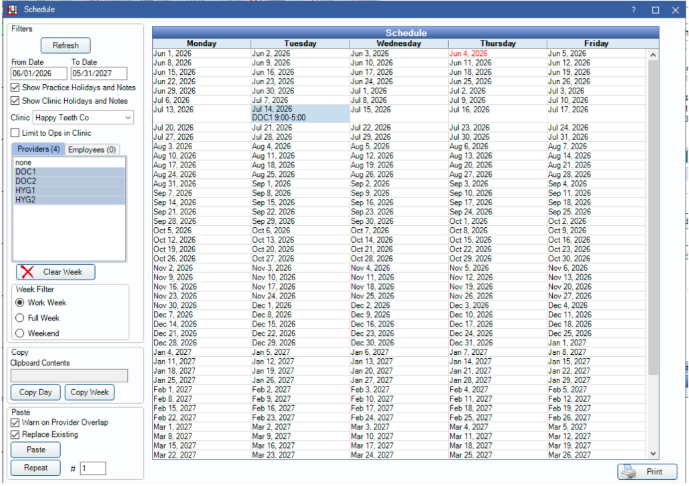
In Open Dental, this is the provider's schedule under Setup -> Schedules.
Blockout working hours (label has a string value)
Blockout working hours are a second type of synced working hours. They set blocks of time on the health record system's calendar for specific appointment types. The office sets them up so staff know which types of appointment a doctor takes on a given day. For example, an office can schedule Cleaning from 9am - 12 pm, then a non-schedulable blockout for lunch from 12pm - 1pm.
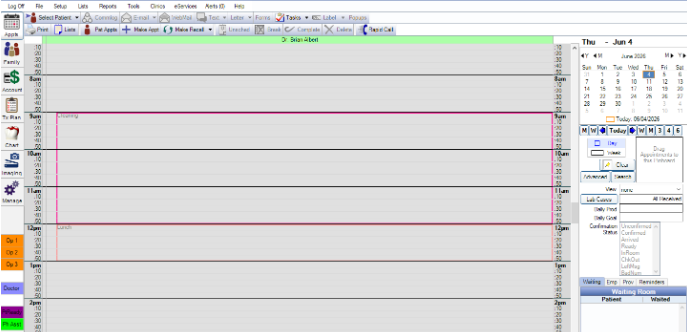
Response (trimmed):
{
  "data": [
    {
      "id": 72941563,
      "provider_id": 518347926,
      "location_id": 445892,
      "operatory_id": 287456,
      "begin_time": "09:00",
      "end_time": "11:00",
      "days": ["Monday"],
      "specific_date": "2025-09-29",
      "custom_recurrence": null,
      "tz_offset": "-0400",
      "active": true,
      "source": "synced",
      "label": {
        "id": 52187,
        "location_id": null,
        "name": "Exam"
      }
    }
  ]
}
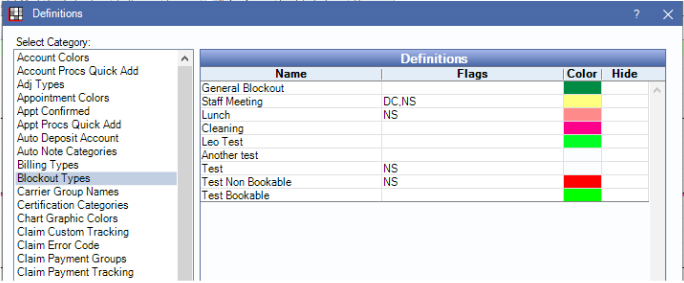
The label name is the name the practice gave the blockout in Open Dental. Labels vary between practices.
In Open Dental, these are the blockouts under Setup -> Definitions -> Blockout types.
Eaglesoft synced working hours
Two things set the Eaglesoft provider schedule.
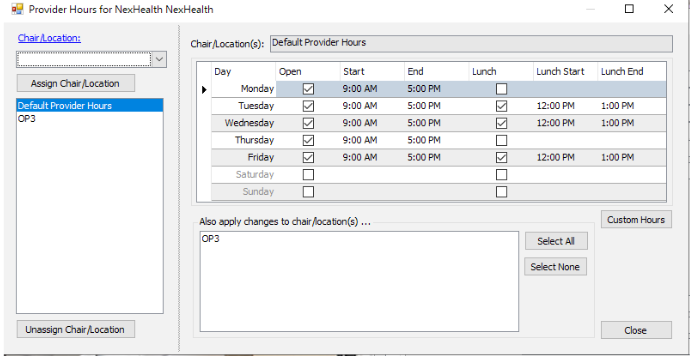
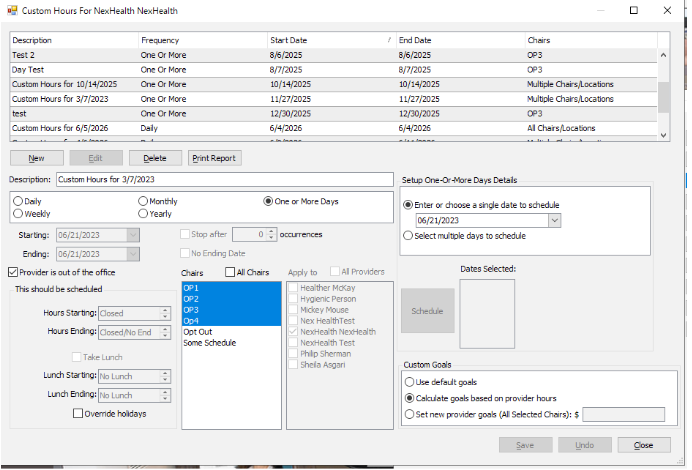
- Default provider hours. The base hours a provider works at the office.
- Custom hours. Overrides for specific days on top of the provider's default hours.
Default provider working hours
In Eaglesoft, set these under List -> Provider/Staff -> Edit provider -> Hours.
Custom hours
In Eaglesoft, set these under List -> Provider/Staff -> Edit provider -> Hours -> Custom Hours.
Gotchas
Schedule changes replace records
When a practice changes a provider's schedule in Eaglesoft, NexHealth deletes that provider's working hour records and creates new ones for the new schedule.
Updated 1 day ago