
Level 3 - Synced working hours
Go back to the main guide here: https://docs.nexhealth.com/docs/scheduling-configuration-guide#/
So far, you've been the source of truth, every working hour record exists because your application POSTed it. For supported systems (Athena, Dentrix Enterprise, eClinicalWorks, Open Dental, Orthotrac, ModMed, NextGen Office, and Eaglesoft.), there's another way: NexHealth reads the schedule directly from the practice's health record system. The practice manages it through their existing workflow. Your application reads what the practice has already configured in their system.
Manual working hours are useful if practices want to offer patients only a subset of availabilities that exist in the practice’s health record system, or if they want to offer patients ad hoc time slots that might not exist in the EHR. They’re necessary for the systems NexHealth doesn’t offer synced availability for.
Synced working hours on the other hand are the configured working hours defined by the office directly in the target health record system and are synced to the NexHealth system. These are useful when offices use the configured rules in the health record system as their source of truth (requires less configuration) and want to make their full calendar available for online booking.
Pick one or the other for a given practice. While mixing manual and synced working hours are possible, it creates overlapping records that can affect available slots returned.
Open dental synced working hours
Synced working hours are readily available for Open Dental. No enablement step is required. The endpoint returns provider schedules and blockout data immediately.
Two types of records from the /working_hours endpoint are returned, distinguished by the label field:
- Provider working hours - the provider's base schedule as configured in Open Dental. The label field is null.
- Blockout / templated working hours - named time blocks the practice has designated for specific purposes (lunch, hygiene-only, new patients). The label object contains a name value.
Provider working hours (label is null):
This is the synced path. Same practice as Level 1. Dr. Smith works Mondays through Thursdays, 9:00 AM to 5:00 PM, in Operatory 1
Response (trimmed):
{
  "data": [
    {
      "id": 73091254,
      "provider_id": 518347930,
      "location_id": 445892,
      "operatory_id": 1,
      "begin_time": "09:00",
      "end_time": "17:00",
      "days": ["Monday"],
      "specific_date": "2025-09-29",
      "custom_recurrence": null,
      "tz_offset": "-0400",
      "active": true,
      "source": "synced",
      "label": null
    }
  ]
}
A null label represents time when the provider is in the office. Reference these hours when telling a patient "Dr. Smith is available on Mondays from 8 am to 5 pm."
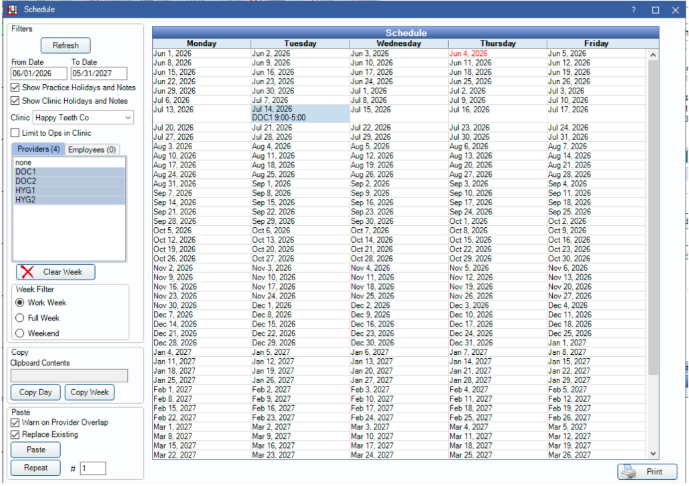
In Open dental this corresponds to the configured provider’s schedule found in: Setup -> Schedules
Blockout working hours (label has a string value):
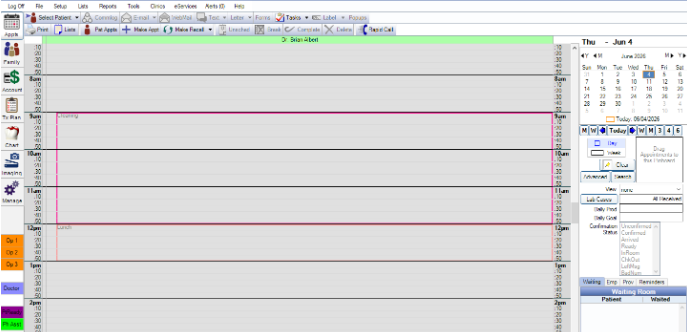
Blockout working hours are a secondary type of synced working hours. These define specific blocks of time on the health record system’s calendar for specific appointment types. The office will configure these so that the office staff knows which specific types of appointments a doctor will be available for booking on a given day. For example, and office can schedule Cleaning from 9am - 12 pm and then a non-scheduable blockout for lunch from 12pm - 1pm.
Response (trimmed):
{
  "data": [
    {
      "id": 72941563,
      "provider_id": 518347926,
      "location_id": 445892,
      "operatory_id": 287456,
      "begin_time": "09:00",
      "end_time": "11:00",
      "days": ["Monday"],
      "specific_date": "2025-09-29",
      "custom_recurrence": null,
      "tz_offset": "-0400",
      "active": true,
      "source": "synced",
      "label": {
        "id": 52187,
        "location_id": null,
        "name": "Exam"
      }
    }
  ]
}
The label name comes directly from how the practice named the blockout in Open Dental. Labels vary across practices.
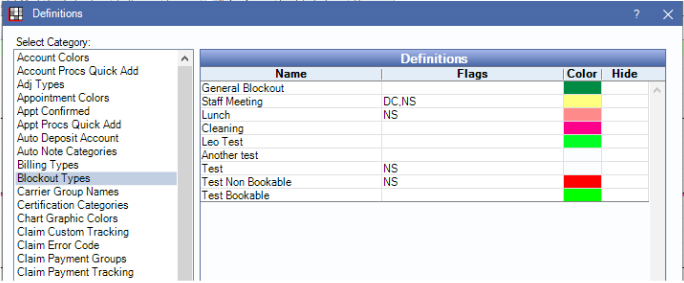
In Open dental this corresponds to the defined blockouts found in: Setup -> Definitions -> Blockout types.
Eaglesoft synced working hours
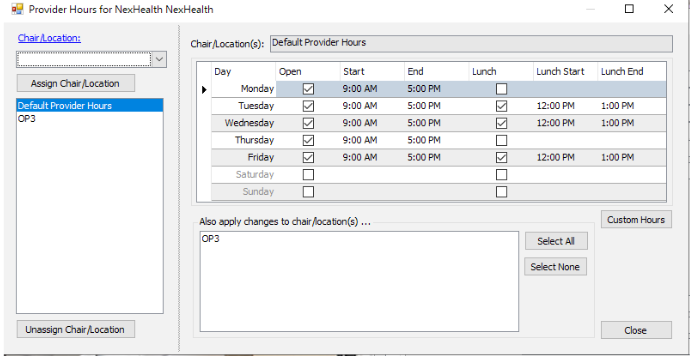
The Eaglesoft provider schedule is determined by two things
- Default provider hours - The base set of time a provider works at the office
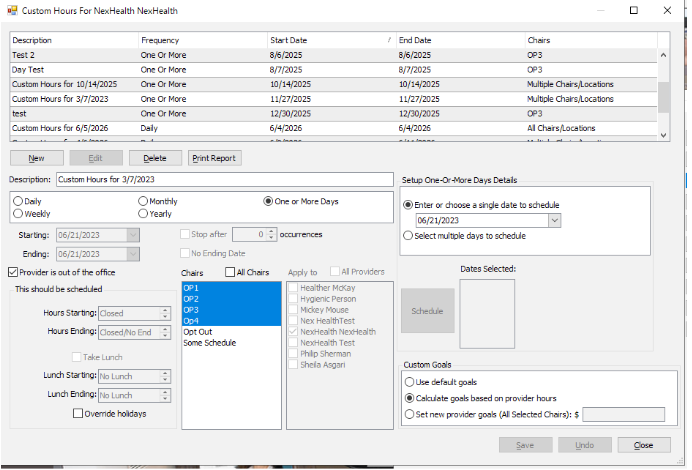
- Custom hours - Custom provider hours in Eaglesoft represent specific day overrides on top of a provider’s default hours
Default provider working hours
In Eaglesoft these are configured in List -> Provider/Staff -> Edit provider -> Hours
Custom hours
In Eaglesoft these are configured in List -> Provider/Staff -> Edit provider -> Hours -> Custom Hours
Gothcas
Custom schedule changes replace records, not edit them.
When a practice modifies a provider's schedule inside Eaglesoft, NexHealth deletes the existing working hour records for that provider and generates fresh ones to reflect the new schedule.